
Basic: reading text
Content blocks section
Reading text is part of the section.
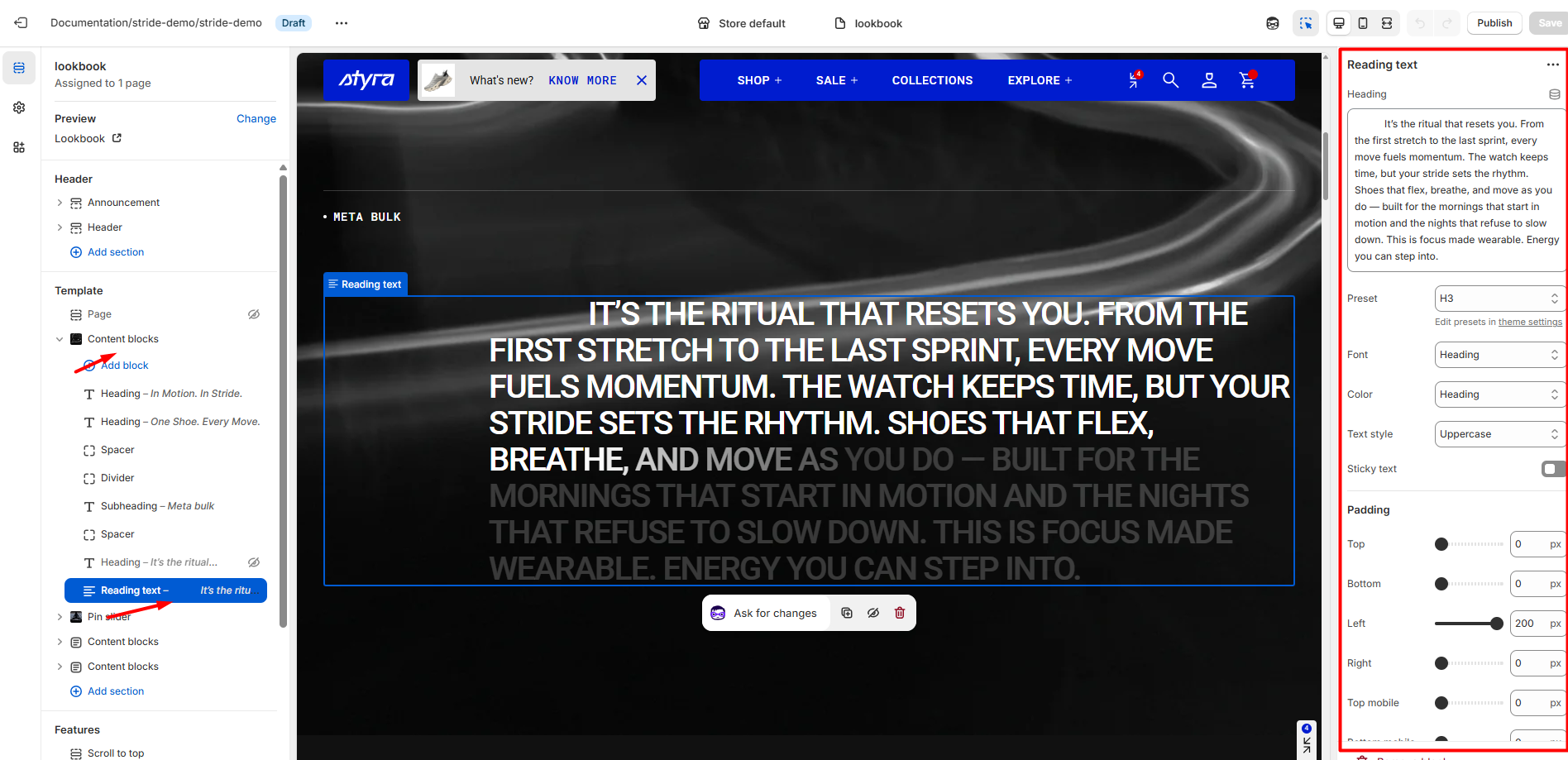
| Setting | Description |
| Heading |
Enter your text in this field. Use the top menu to style the text with bold, italic, or link, or apply preset options. You can also use the Dynamic Source button to insert dynamic content. After adding the heading, additional options will appear for further customization. |
| Preset |
In Theme Settings → Typography → Fonts, you can set font settings for Heading, Subheading, Caption, and Paragraph. Choose which style to apply in this block.
|
| Font |
In Theme Settings → Typography → Fonts, you can select a font family from the list and choose the font weight at the end of the list separately for Heading, Body, and Accent text. Based on these settings, each block allows you to choose which font style is applied.
|
| Color |
Each color scheme includes Heading, Text, and Accent color settings. Use this dropdown to select which color to apply. The available options may vary depending on the selected block color scheme.
|
| Text style |
Choose text style for preset:
|
| Sticky text |
When disabled, you can scroll only the text within the fixed Reading Text container. When enabled, the height of the Reading Text block increases, allowing the text to move within the larger container as you scroll. To see the effect, the text can be large but not too long, leaving enough space in the block for it to move while scrolling, or the text can be longer if the heading size is smaller. Thanks to the extended theme settings, you can choose any text size for this block to match your design. |
Padding
Padding settings are repeated across sections and blocks, which is why they are included in the Global settings category.
For more details, read these article: Expanded block padding settings