
Row block - column block - layout: timeline group
Content blocks section - row block - column block
This block is part of the column block.
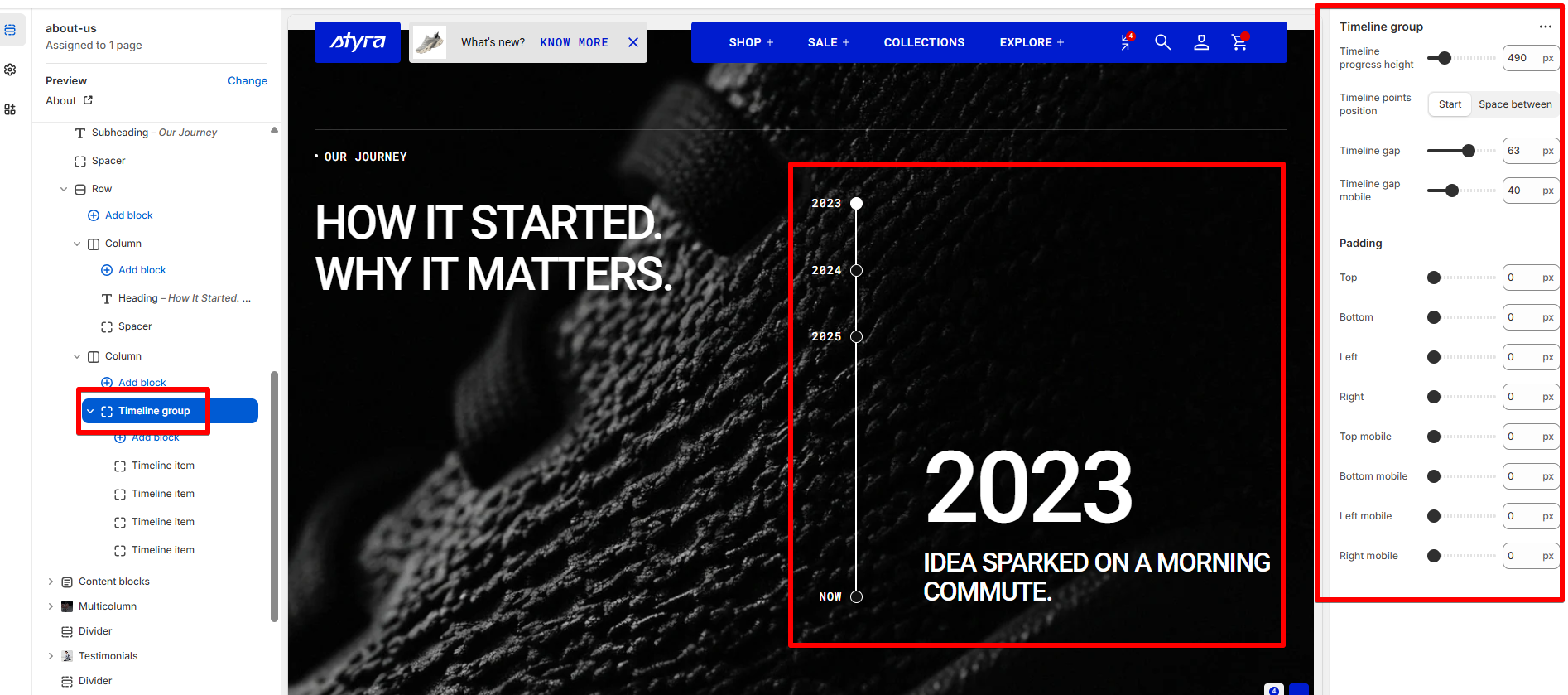
| Setting | Description |
|---|---|
| Timeline progress height | Adjust the height of the timeline progress line using a slider. |
| Timeline points position |
Controls how timeline items are spaced vertically. • Start: ◦ The space between each year remains equal. ◦ The distance from the last item to Now (latest timeline item) can grow when the timeline height increases. • Space between: ◦ All timeline items keep equal spacing. ◦ Spacing remains consistent regardless of timeline height. |
| Timeline points radius | Adjust the corner roundness of the timeline points using a slider. Range: 0–50px (default: 8px). A value of 0 gives sharp square points; higher values make them rounder. |
| Timeline gap |
Defines how vertical gaps are applied between timeline items. Options: • Apply the same gap to every item • Apply the same gap to all items except the last one |
| Timeline gap mobile | Sets a separate gap value specifically for mobile devices to improve readability and layout on smaller screens. |
Padding
Padding settings are repeated across sections and blocks, which is why they are included in the Global settings category.
For more details, read these article: Expanded block padding settings
Timeline group block inclues timeline item block.
Timeline item
| Setting | Description |
| Timeline label | The short title or heading displayed for a timeline item (for example, a year, milestone name, or event title). |
| Timeline label type preset |
Choose the timeline label type preset. In Theme Settings → Typography → Fonts, you can set font settings for Heading, Subheading, Caption, and Paragraph. Choose which style to apply in this block.
|
| Timeline label font family |
Select font family for the timiline label. In Theme Settings → Typography → Fonts, you can select a font family from the list and choose the font weight at the end of the list separately for Heading, Body, and Accent text. Based on these settings, each block allows you to choose which font style is applied.
|
| Timeline label color |
Select color for the timeline label. Each color scheme includes Heading, Text, and Accent color settings. Use this dropdown to select which color to apply. The available options may vary depending on the selected block color scheme.
|
| Timeline label text style |
Choose timiline label text style:
|
| Timeline text | The main description or content shown for the timeline item, providing additional details about the event or milestone. |
| Timeline text type preset |
Choose the timeline text type preset. In Theme Settings → Typography → Fonts, you can set font settings for Heading, Subheading, Caption, and Paragraph. Choose which style to apply in this block.
|
| Timeline text font family |
Select font family for the timiline text. In Theme Settings → Typography → Fonts, you can select a font family from the list and choose the font weight at the end of the list separately for Heading, Body, and Accent text. Based on these settings, each block allows you to choose which font style is applied.
|
| Timeline text color |
Select color for the timeline text. Each color scheme includes Heading, Text, and Accent color settings. Use this dropdown to select which color to apply. The available options may vary depending on the selected block color scheme.
|
| Timeline text style |
Choose timiline text style:
|
Padding
Padding settings are repeated across sections and blocks, which is why they are included in the Global settings category.
For more details, read these article: Expanded block padding settings.