
Basic: scrolling gallery
Content blocks section
Scrolling gallery block is part of the section.
Demo example
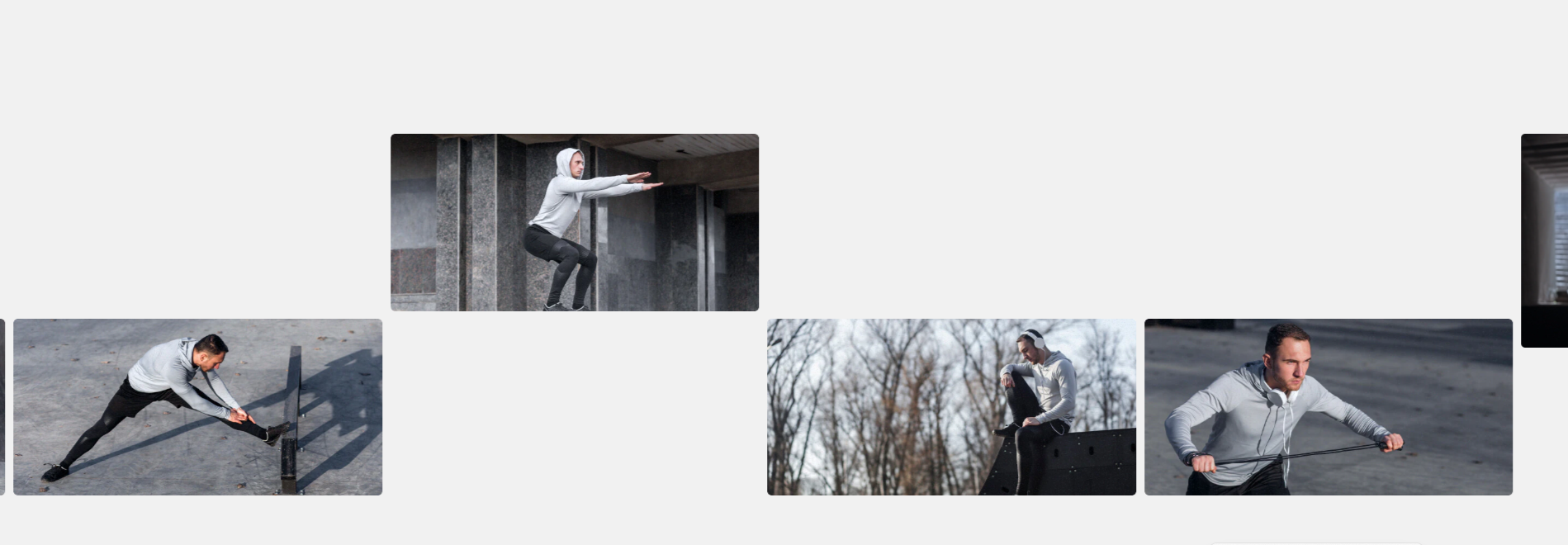
Block settings
| Setting | Description |
| Parallax background | Add a background for scrolling gallery. |
| Slides per view | Set the number of slides visible at the same time. |
| Space between items | Define the spacing between gallery items. |
| Slides per view mobile | Set the number of visible slides on mobile devices. |
| Space between items mobile | Define the spacing between items on mobile devices. |
| Autoplay | Automatically scroll through the gallery items. |
| Continuous scroll | When disabled, the Autoplay delay option becomes visible. |
| Autoplay delay | Set the delay time between automatic slide transitions. |
| Setting | Description |
| Continuous scroll | When is enabled, the scroll speed option becomes visible. |
| Scroll speed | Adjust the scrolling speed of the gallery. |
| Pause autoplay on hover | Pause automatic scrolling when the cursor hovers over the gallery. |
| Block full width | Toggle to display the gallery full width or within the container. |
Padding
Padding settings are repeated across sections and blocks, which is why they are included in the Global settings category.
For more details, read these article: Expanded block padding settings.
Scrolling gallery block includes scrolling gallery item.
Scrolling gallery item
| Setting | Description |
| Image | Select the image for the gallery item. |
| Image ratio |
Choose the aspect ratio of the image. Options include: Adapt: Automatically adjust to the original image dimensions. Portrait: Set a vertical portrait ratio. Square: Set a square ratio. Landscape: Set a horizontal landscape ratio. Wide: Set a wide horizontal ratio. Ultra wide: Set an extra-wide horizontal ratio. Custom: Define a custom aspect ratio. |
| Custom image ratio | Use a slider to adjust ratio for the image. |
| Image position |
Choose the vertical alignment of the image within the container:
|