
Collection banner
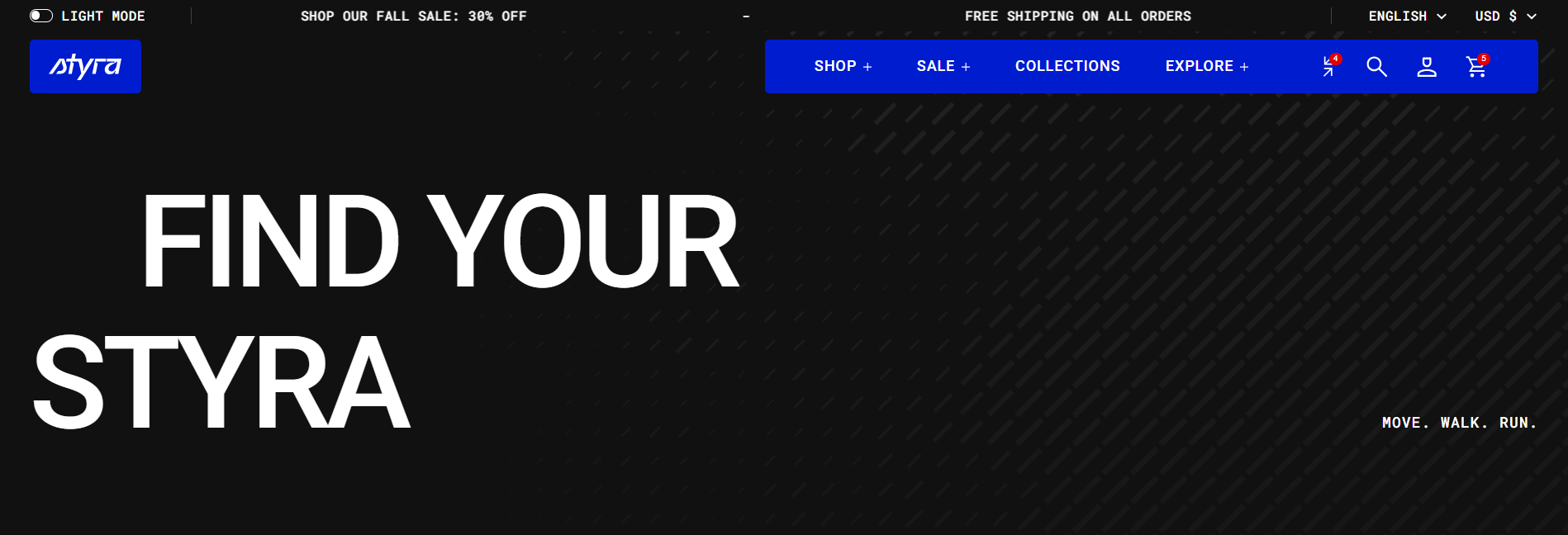
| Setting | Description |
| Color scheme |
Apply color scheme for the collection banner from the available color schemes list. Read 'Color scheme' article to learn more about color schemes. |
| Show banner image | Show a banner image. It can cover the full banner or be placed on the left or right. |
| Image | Upload or select an image from the library for the collection banner. |
| Image mobile | Upload a separate image specifically for mobile devices. |
| Image position |
Select the position of the banner image. Options:
Note: Left and Right positions are always shown at the top on mobile devices. |
| Image height |
Adjust the height of the banner image. Visible only if the image position is set to Left or Right. |
| Image height mobile |
Adjust the height of the banner image on mobile. Visible only if the image position is set to Left or Right. |
| Overlay opacity | Set the opacity of the overlay applied over the banner image to improve text readability. This works both when the image is used as a background or positioned on the left or right of the content. |
Content
| Setting | Description |
| Subheading | Add a subheading above the banner title. Subheading is a short text displayed above the main banner title. |
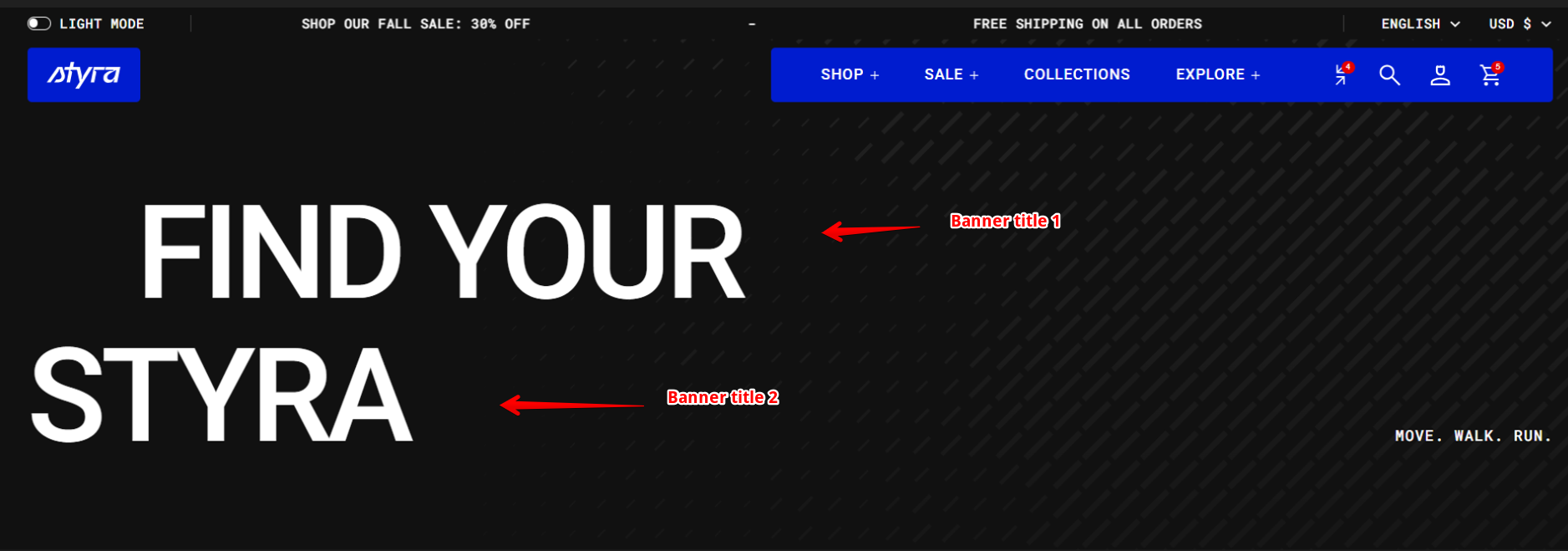
| Banner title | Add the main banner title. |
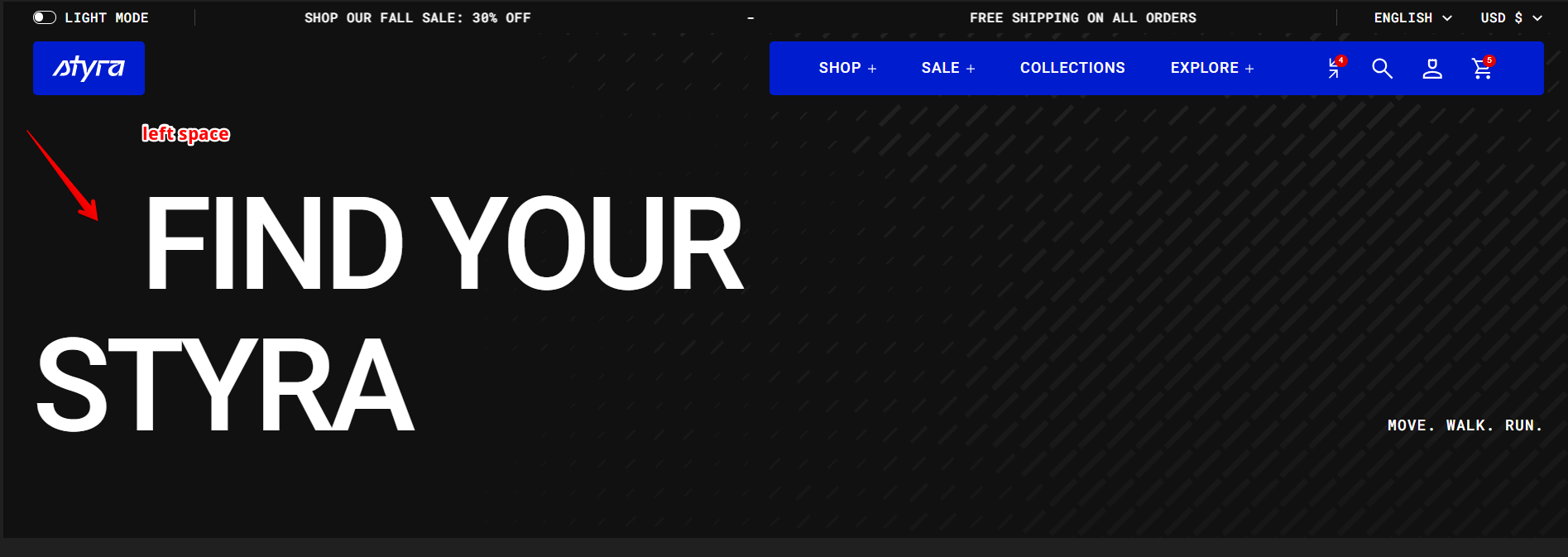
| Left space | You can add left spacing to the first line of the banner title. See the demo example for reference. |
| Banner title line 2 | You can add a second line for the banner title if needed. |
| Description | Add a banner description. |
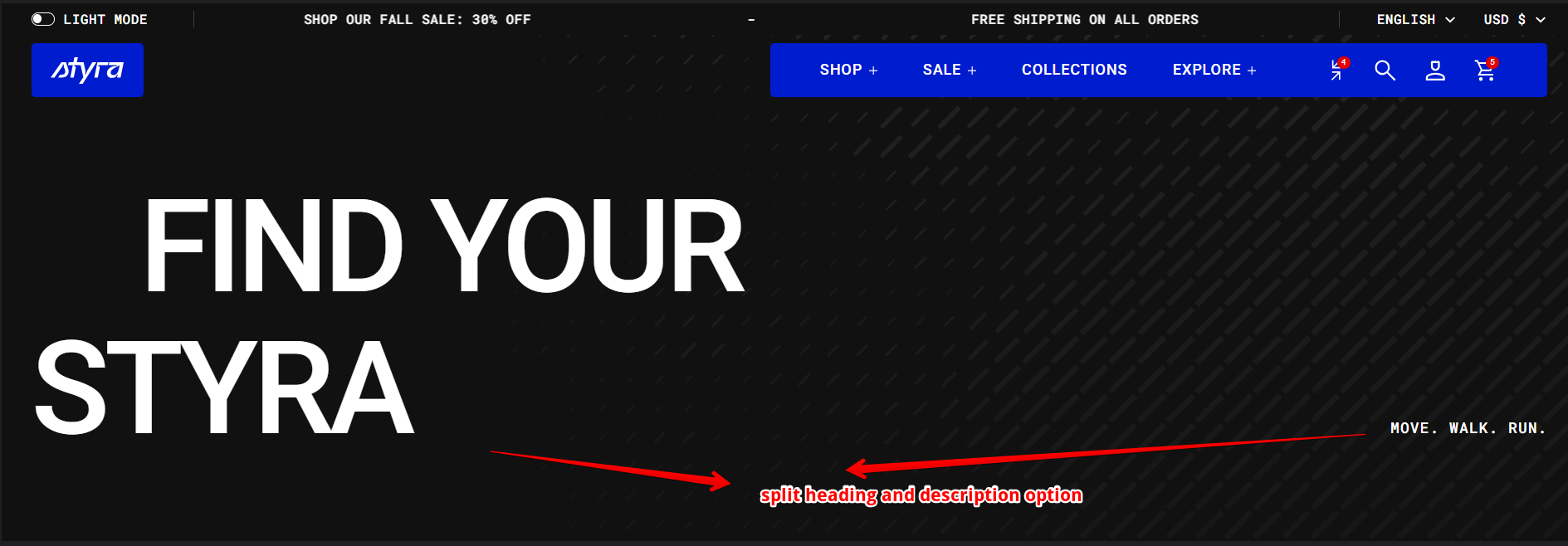
| Split heading and description |
Description:
See the demo example for reference. |
Read this article - "Subheading, Heading, and Description" — all related options, including Preset, Icon, Font, Color, Text Style, Bottom Space, and Bottom Space (Mobile).
Layout
| Setting | Description |
| Content alignment |
Choose content alignment for subheading, heading and description: Options:
|
| Content alignment mobile |
Set the alignment of the content specifically for mobile devices. Options:
|
| Show container |
Enable this option to display a container around the content. Note: This option is available when image position is Cover. |
| Container color scheme | Select a color scheme for the container from the available color schemes list. |
Padding
Padding is the space inside a section that separates the content from the section’s edges.
See this article to set paddings: Section padding