Password header
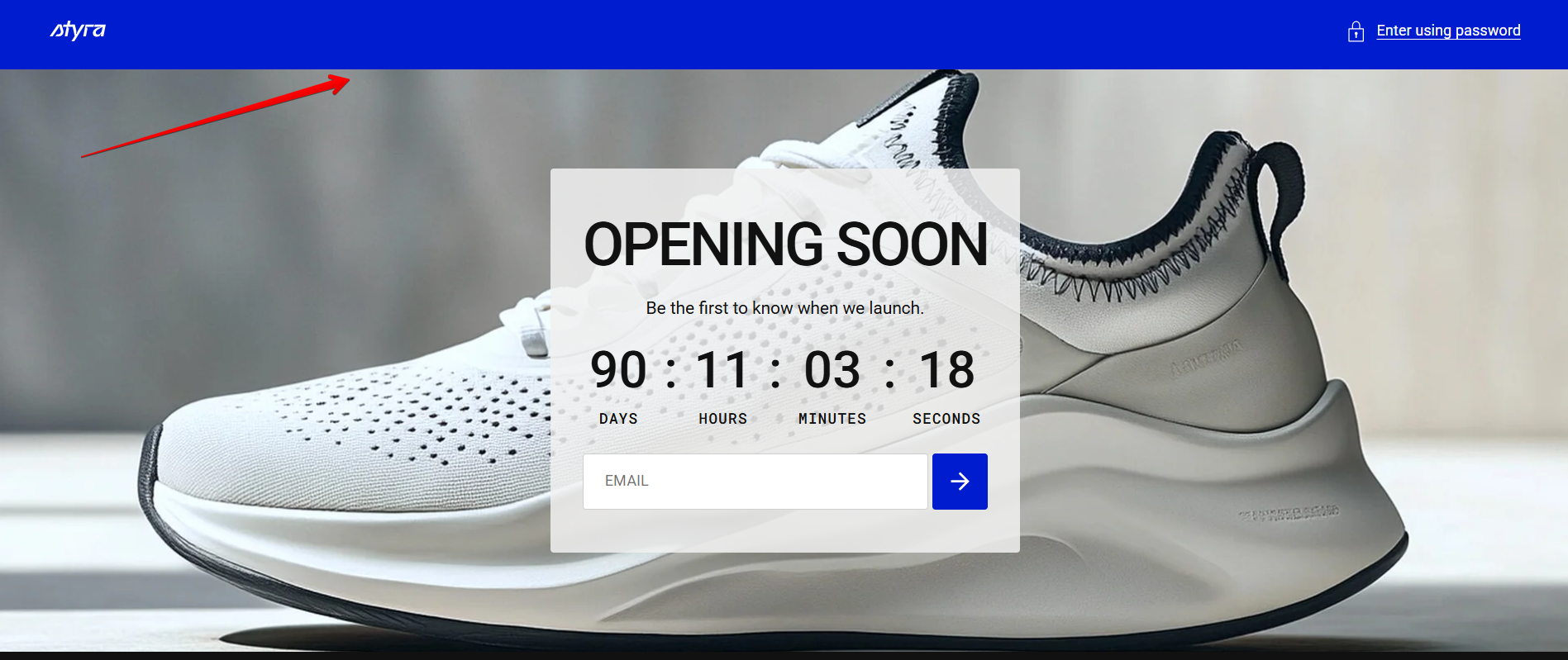
Logo
Edit your logo in theme settings.
| Settings |
Description |
| Color scheme |
Apply Color Schemes:
- After creating your color schemes in theme settings — 'Colors' tab, you can apply them to different sections, blocks, or templates of your store.
- In each section, block, or template you'll see a Color scheme dropdown.
- Select the appropriate color scheme, ensuring consistency with your brand's identity.
Read 'Color scheme' article to learn more about color schemes.
|
| Popup color scheme |
Click the "Enter using password" link or button to open the popup, then apply the desired colors using the selected color scheme. |
| Password button style |
Choose the button’s appearance:
- Primary: The main button style. It uses the primary color from your color scheme. You can choose to fill it with the background color or display it as an outline if the background is set to transparent.
- Secondary: A secondary action style, using the secondary color from your color scheme. Like the primary button, it can be filled or outlined depending on the background settings.
- Inline: Minimal style that looks like text with an underline.
|
| Password button icon |
This setting lets you add a small visual indicator to your button.
- None: The button displays only the text, with no icon.
- Dot: A small dot appears before the button label.
|

