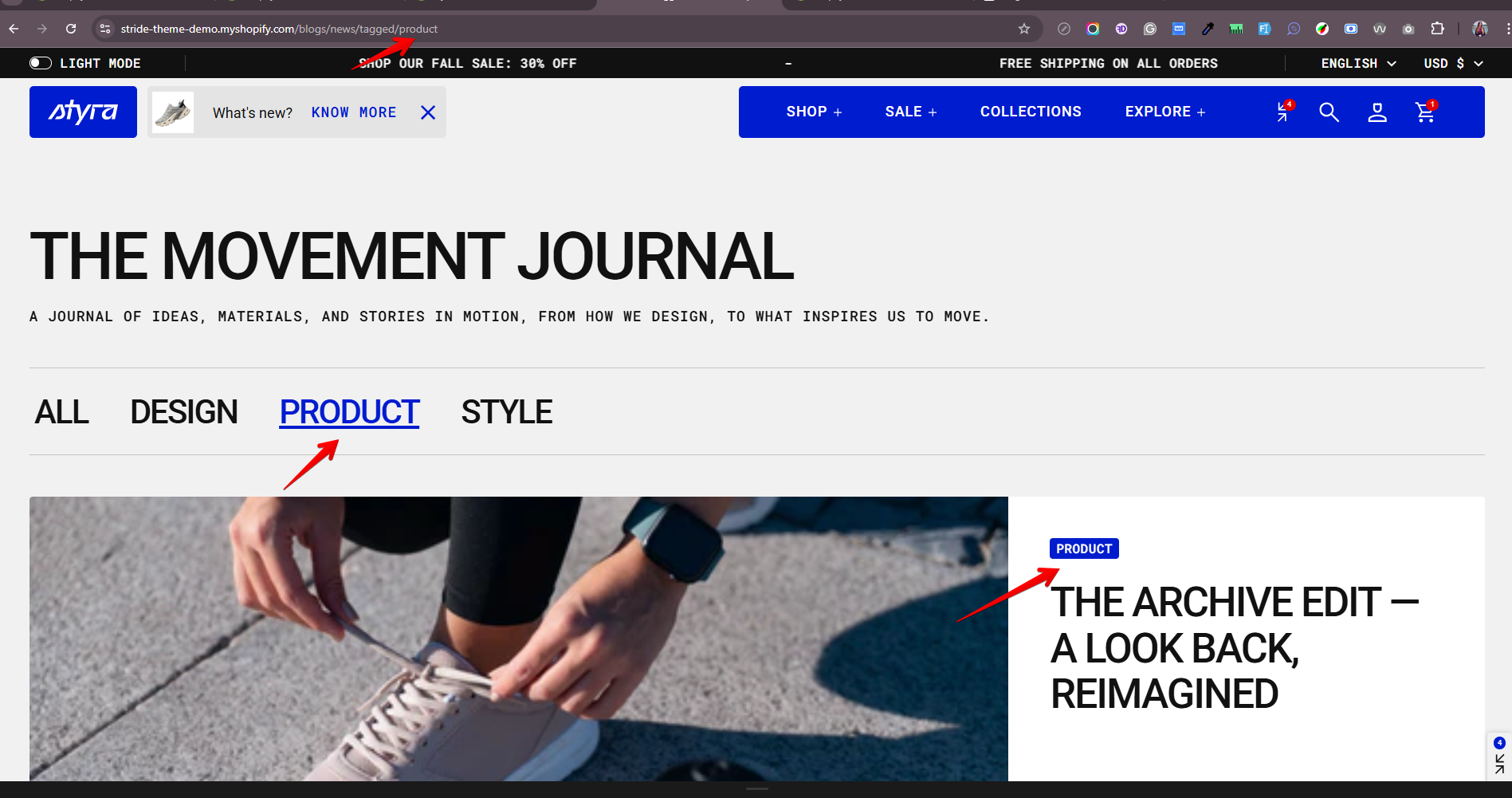
Blog tags
| Setting | Description |
|---|---|
| Preset |
In Theme Settings → Typography → Fonts, you can set font settings for Heading, Subheading, Caption, and Paragraph. Choose which style to apply to the tag links. Hero, H1-H6: Select a heading level from Hero, H1 to H6 and customize it using the options below. Subheading: Style used for text that appears below a main heading, typically smaller or less prominent. Caption: Style used for short supporting text, such as labels or annotations. Paragraph: Style used for standard body text. (Default: H4) |
| Font |
Choose the font family applied to the tag links: • Heading (Default) • Body • Accent |
| Color |
Choose the color applied to the tag links. Each color scheme includes Heading, Text, and Accent color settings. The available options may vary depending on the selected block color scheme. • Heading (Default) • Text • Accent |
| Text style |
Choose text style for the tag links: • Normal (Default) • Uppercase • Lowercase |
You can visually separate this block from other content (as shown in the demo) by adding a Divider block above and below the Blog Tags navigation.
How it works in the Dashboard
In the Dashboard → Blog Posts section, you can assign tags to each blog post (or to specific posts) using the Organization section.
- The tags added there will appear:
- on blog cards
- in this block as navigation tags
When a user clicks a tag on a blog card or within the navigation:
- the page URL will include the selected tag
- only blog posts with that tag will be displayed on the page
- the selected tag will also be highlighted in the navigation with a different color and underline