Shoppable setups settings
A section where customers choose products from curated setups, such as a desk or a gaming station, and add the chosen products to the cart together. Each setup is a tab with hotspots on an image; a side panel lists the selected products. Setups are built from blocks: add them with Add block in the section.
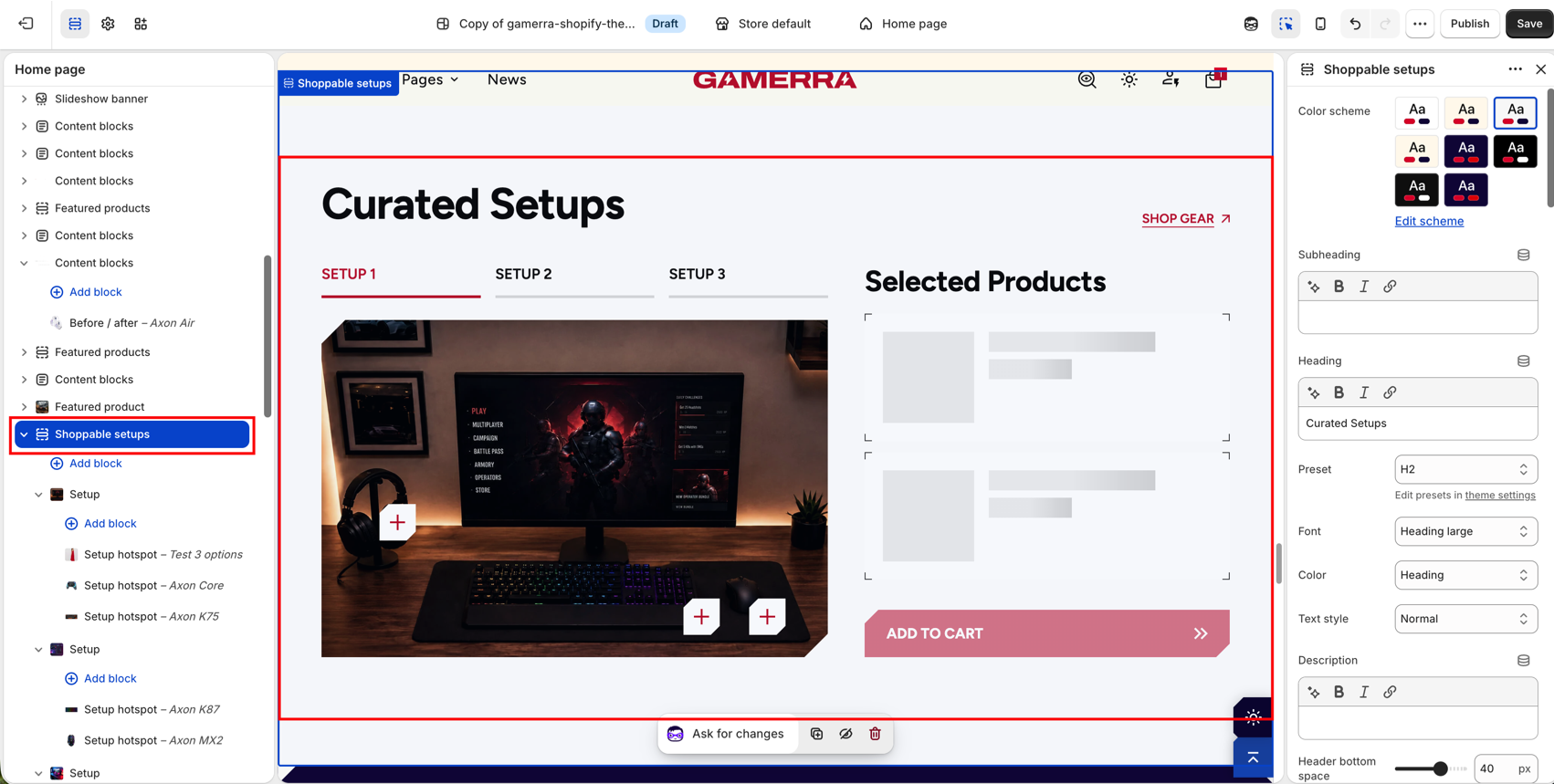
Blocks you can add to the section
- Setup: one setup (one tab) with its image and hotspots. Add one block per setup.
Section settings
| Setting |
Description |
| Color scheme |
Color scheme applied to the section. Schemes are managed in Theme settings → Colors; use Edit scheme to jump there. Default: Scheme 1. |
Subheading
| Setting |
Description |
| Subheading |
Short line above the heading. Supports inline formatting. Leave empty to hide it. The settings below appear only when a subheading is entered. |
| Preset |
Typography preset: Hero, H1–H6, Subheading, Caption, Large text, Paragraph or Small text. Presets are edited in Theme settings → Typography. Default: Subheading. |
| Icon |
Decorative icon before the text: None, Dot, Square or Triangle. Available only with the Subheading preset. Default: Triangle. |
| Icon color |
Color of the icon: Heading, Text, Accent or Custom. Available only with the Subheading preset and an icon selected. Default: Custom. |
| Icon custom |
Custom icon color. Available only when Icon color is Custom. Default: #2B62C8. |
| Icon custom dark mode |
Custom icon color used in dark mode. Available only when Icon color is Custom and dark mode is enabled in Theme settings. Default: #2B62C8. |
| Font |
Font family: Heading large, Heading small, Body or Accent. Default: Accent. |
| Color |
Text color: Heading, Text or Accent. Default: Accent. |
| Text style |
Letter case: Normal, Uppercase or Lowercase. Default: Uppercase. |
| Bottom space |
Space between the subheading and the heading. Shown when a heading or description is entered. Range: 0–60 px. Default: 40 px. |
| Bottom space mobile |
The same space on mobile. Range: 0–40 px. Default: 20 px. |
Heading
| Setting |
Description |
| Heading |
Section heading. Supports inline formatting. Leave empty to hide it. The settings below appear only when a heading is entered. Default: Curated setups. |
| Preset |
Typography preset (same options as the subheading). Default: H2. |
| Icon, Icon color, Icon custom, Icon custom dark mode |
Same as for the subheading; available only with the Subheading preset. |
| Font |
Font family: Heading large, Heading small, Body or Accent. Default: Heading large. |
| Color |
Text color: Heading, Text or Accent. Default: Heading. |
| Text style |
Letter case: Normal, Uppercase or Lowercase. Default: Uppercase. |
| Bottom space |
Space between the heading and the description. Shown when a description is entered. Range: 0–60 px. Default: 16 px. |
| Bottom space mobile |
The same space on mobile. Range: 0–40 px. Default: 8 px. |
Description
| Setting |
Description |
| Description |
Text under the heading. Supports inline formatting. Leave empty to hide it. The settings below appear only when a description is entered. |
| Preset |
Typography preset (same options as the subheading). Default: Paragraph. |
| Icon, Icon color, Icon custom, Icon custom dark mode |
Same as for the subheading; available only with the Subheading preset. |
| Font |
Font family: Heading large, Heading small, Body or Accent. Default: Body. |
| Color |
Text color: Heading, Text or Accent. Default: Text. |
| Text style |
Letter case: Normal, Uppercase or Lowercase. Default: Normal. |
| Header bottom space |
Space between the whole header (subheading, heading, description) and the setups. Shown when any of them is entered. Range: 0–60 px. Default: 40 px. |
| Header bottom space mobile |
The same space on mobile. Range: 0–60 px. Default: 40 px. |
| Setting |
Description |
| Link label |
Text of the link shown next to the header. Default: Shop gear. |
| Link |
Page the link leads to. |
| Link style |
Primary, Secondary, Outline or Inline. Button styles are edited in Theme settings → Buttons. Default: Inline. |
| Link icon |
Icon next to the label: None, Dot, Square, Triangle, Arrow, Caret or Carets. Default: Arrow. |
| Link icon position |
Places the icon to the left or right of the label. Available only when an icon is selected. Default: Right. |
Tabs
| Setting |
Description |
| Tabs alignment |
Aligns the row of tabs to the Left, Center or Right. Default: Left. |
| Preset |
Typography preset of the tab names: Hero, H1–H6, Subheading, Caption, Large text, Paragraph or Small text. Default: Subheading. |
| Font |
Font family: Heading large, Heading small, Body or Accent. Default: Accent. |
| Color |
Color of inactive tabs: Heading, Text or Accent. Default: Text. |
| Active tab color |
Color of the selected tab: Heading, Text or Accent. Default: Accent. |
| Text style |
Letter case: Normal, Uppercase or Lowercase. Default: Uppercase. |
Hotspot card
The card that opens when a customer clicks a hotspot.
| Setting |
Description |
| Button label |
Text on the card button. Default: Add product. |
| Button style |
Primary, Secondary, Outline or Inline. Default: Inline. |
| Button icon |
Icon next to the label: None, Dot, Square, Triangle, Arrow, Caret or Carets. Default: Arrow. |
| Button icon position |
Places the icon to the left or right of the label. Available only when an icon is selected. Default: Right. |
Selected products
The side panel that lists the products the customer has chosen and adds them to the cart together.
| Setting |
Description |
| Color scheme |
Color scheme of the panel. Schemes are managed in Theme settings → Colors. Default: Scheme 1. |
| Heading |
Heading of the panel. Supports inline formatting. Leave empty to hide it. The settings below it appear only when a heading is entered. Default: Selected Products. |
| Preset |
Typography preset of the panel heading: Hero, H1–H6, Subheading, Caption, Large text, Paragraph or Small text. Default: H4. |
| Font |
Font family: Heading large, Heading small, Body or Accent. Default: Heading large. |
| Color |
Text color: Heading, Text or Accent. Default: Heading. |
| Text style |
Letter case: Normal, Uppercase or Lowercase. Default: Normal. |
| Panel width |
Width of the panel on desktop. Range: 240–480 px, step 10. Default: 380 px. |
| Column gap |
Space between the setup image and the panel. Range: 0–80 px, step 2. Default: 24 px. |
| Minimum items to require |
Minimum number of products a customer must select before adding to the cart. Range: 2–4. Default: 2. |
| Maximum items to allow |
Maximum number of products a customer can select. Range: 2–6. Default: 4. |
| Start with every product added |
Adds all products of the visible setup to the panel up front, so the customer removes what they don’t want. Switching setups swaps the list. Default: Off. |
| Show progress bar |
Shows a progress bar toward the minimum number of items. Default: Off. |
| Show total |
Shows the total price of the selected products. Default: On. |
| Show quick view button |
Shows a quick view button for each selected product. Default: On. |
| Remove button label |
Text on the remove button of each product. Default: Remove. |
| Remove button style |
Primary, Secondary, Outline or Inline. Default: Inline. |
| Remove button icon |
Icon next to the label: None, Dot, Square, Triangle, Arrow, Caret or Carets. Default: None. |
| Remove button icon position |
Places the icon to the left or right of the label. Available only when an icon is selected. Default: Right. |
| Button label |
Text on the main button that adds the selected products to the cart. Default: Add to cart. |
| Button style |
Primary, Secondary, Outline or Inline. Default: Primary. |
| Button icon |
Icon next to the label: None, Dot, Square, Triangle, Arrow, Caret or Carets. Default: Carets. |
| Button icon position |
Places the icon to the left or right of the label. Available only when an icon is selected. Default: Right. |
Products
| Setting |
Description |
| Show variant picker |
Shows variant swatches inside the hotspot product card. Default: On. |
Shape divider
Cuts the section edge. Add padding so the content doesn’t overlap the cut.
| Setting |
Description |
| Type |
Shape of the cut: None, Triangle corners, Rounded corners, Zigzag, Diagonal (left), Diagonal (right), Chevron notch or Stairs. Default: None. |
| Position |
Which edge is cut: Top, Bottom or Both. Available only when a shape is selected. Default: Top. |
| Cut size |
How large the cut is on desktop. Higher values cut deeper. Available only when a shape is selected. Range: 50–150 %, step 5. Default: 100 %. |
| Cut size mobile |
How large the cut is on mobile. Available only when a shape is selected. Range: 50–150 %, step 5. Default: 100 %. |
| Top: scheme of the section above |
Color scheme of the neighbouring section above, so the cut shows its background in light and dark mode. Available when the cut is at the top or on both edges. Default: Scheme 1. |
| Bottom: scheme of the section below |
Color scheme of the neighbouring section below, so the cut shows its background in light and dark mode. Available when the cut is at the bottom or on both edges. Default: Scheme 1. |
Padding
| Setting |
Description |
| Top |
Space above the section content on desktop. Range: 0–200 px, step 2. Default: 60 px. |
| Bottom |
Space below the section content on desktop. Range: 0–200 px, step 2. Default: 60 px. |
| Top mobile |
Space above the section content on mobile. Range: 0–120 px, step 2. Default: 30 px. |
| Bottom mobile |
Space below the section content on mobile. Range: 0–120 px, step 2. Default: 30 px. |
Custom CSS
The Custom CSS field at the bottom of the section panel is a standard Shopify setting. CSS entered there applies to this section only.

