
Product bundle settings
This guide describes the Product Bundle section. The banner can use either an image or a video as its background.
The Product Bundle section allows customers to create their own bundle by selecting multiple products from a predefined collection or from a manually created product list. The section displays available products, enables customers to add items to their bundle, and automatically updates the bundle summary, including selected products and the total price.
Customers can add products up to the defined limit, track their progress through a visual indicator, and complete the bundle using the provided action button. This section is designed to simplify product discovery while encouraging higher purchase value through customizable bundled selections.
Demo example:
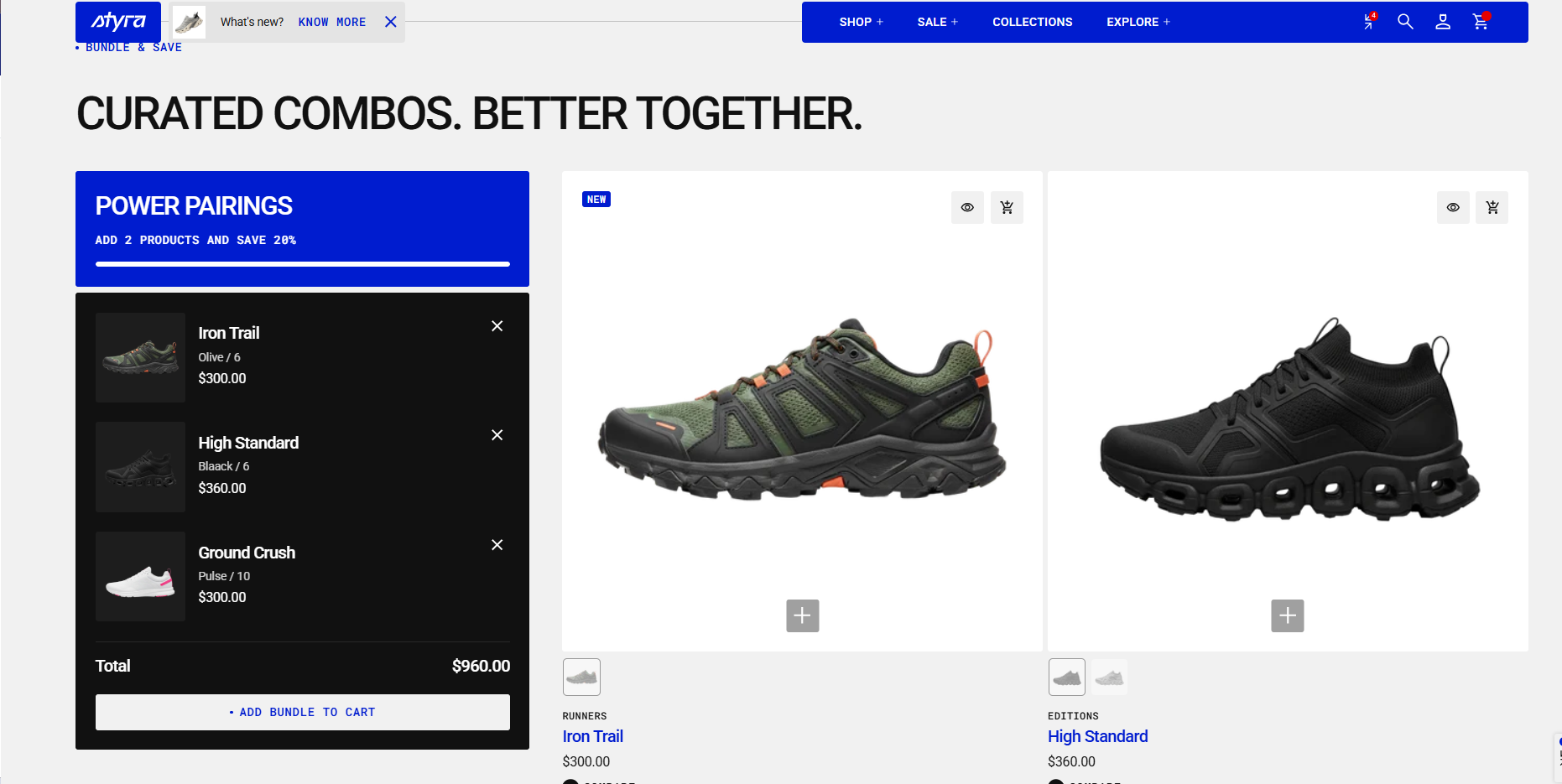
How to access the Product bundle section
Access this section through the theme customizer:
- Navigate to Online Store > Themes
- Select “Customize” on your active theme
- On any theme template, click “Add section”
- Search and select “Product bundle”
Note: Section cannot be added to the Password page.
To insert a new section between existing ones, follow the steps in the article "Sections and blocks" and locate the section titled “How to add a section”.
How to configure the Product bundle section
Basic Components
The “Product bundle” section consists of general settings.
General settings – These control the overall settings of the section.
To start customizing your collection, click on the “Product bundle” section to access its settings.
General settings
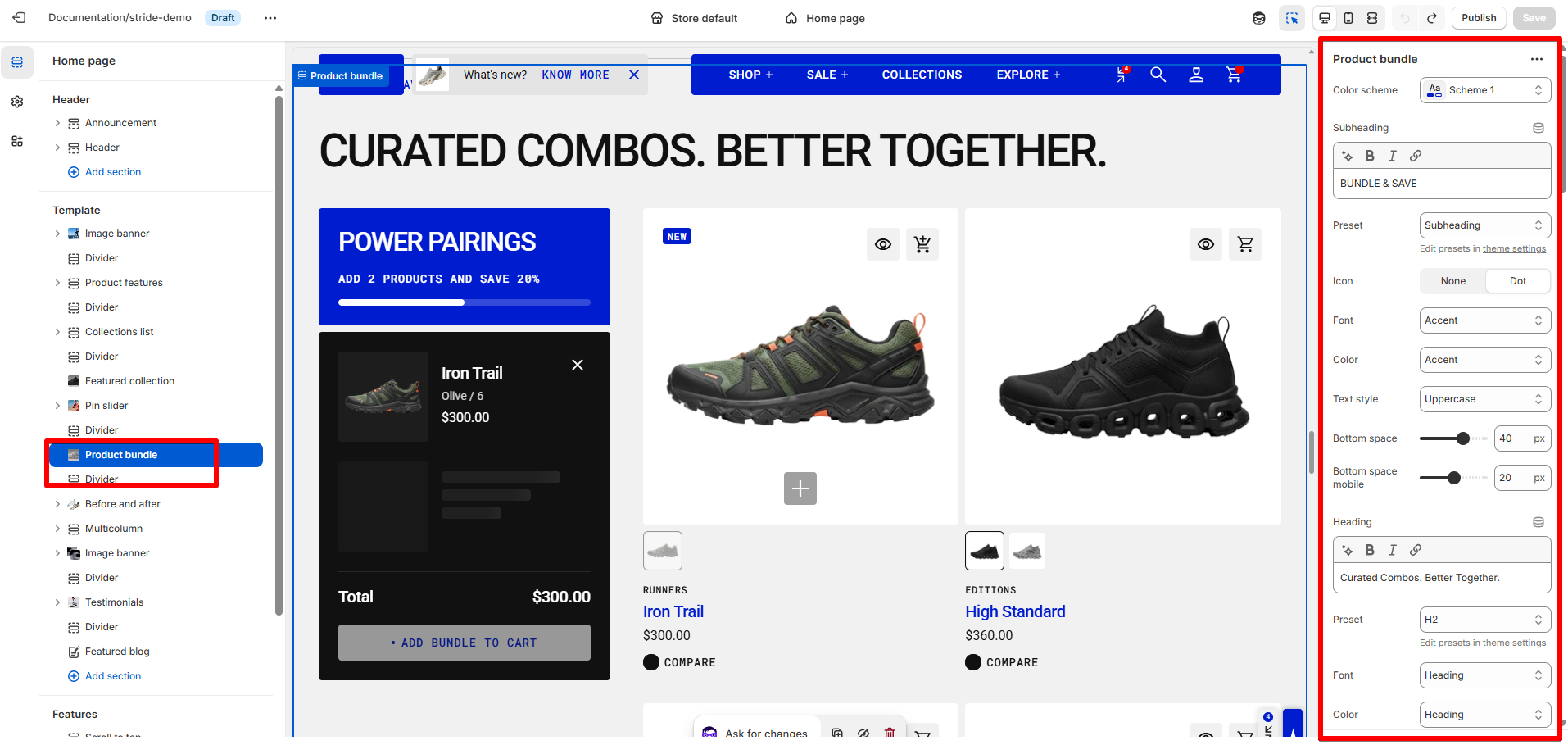
Color scheme
Read Color scheme article to learn more about color schemes.
Subheading, heading, and description (Section header)
| Setting | Description |
|---|---|
| Subheading | Enter text for the small heading displayed above the main title. Defaults to "Section subheading". |
| Preset | Choose the typography preset applied to the subheading (Hero, H1–H6, Subheading, Caption, Paragraph). Edit presets in Theme settings → Typography. Default: Subheading. Only available when Subheading is filled in. |
| Icon |
Choose the subheading appearance: • None • Dot (Default) Only available when Subheading is filled in and Preset is set to Subheading. |
| Font | Choose the font family for the subheading: Heading / Body / Accent (Default). Only available when Subheading is filled in. |
| Color | Choose the color applied to the subheading: Heading / Text / Accent (Default). Only available when Subheading is filled in. |
| Text style | Choose the text style: Normal / Uppercase (Default) / Lowercase. Only available when Subheading is filled in. |
| Bottom space | Space below the subheading on desktop. Range: 0–60px (default: 40px). |
| Bottom space mobile | Space below the subheading on mobile. Range: 0–40px (default: 20px). |
| Heading | Enter text for the main section title. Defaults to "Product bundle". |
| Preset | Choose the typography preset applied to the heading (Hero, H1–H6, Subheading, Caption, Paragraph). Default: H2. Only available when Heading is filled in. |
| Icon |
Choose the heading appearance: • None • Dot (Default) Only available when Heading is filled in and Preset is set to Subheading. |
| Font | Choose the font family for the heading: Heading (Default) / Body / Accent. Only available when Heading is filled in. |
| Color | Choose the color applied to the heading: Heading (Default) / Text / Accent. Only available when Heading is filled in. |
| Text style | Choose the text style: Normal (Default) / Uppercase / Lowercase. Only available when Heading is filled in. |
| Bottom space | Space below the heading, shown only when a description is also set. Range: 0–60px (default: 16px). |
| Bottom space mobile | Space below the heading on mobile, shown only when a description is also set. Range: 0–40px (default: 8px). |
| Description | Enter supporting text displayed below the heading. |
| Preset | Choose the typography preset applied to the description. Default: Paragraph. Only available when Description is filled in. |
| Icon |
Choose the description appearance: • None • Dot (Default) Only available when Description is filled in and Preset is set to Subheading. |
| Font | Choose the font family for the description: Heading / Body (Default) / Accent. Only available when Description is filled in. |
| Color | Choose the color applied to the description: Heading / Text (Default) / Accent. Only available when Description is filled in. |
| Text style | Choose the text style: Normal (Default) / Uppercase / Lowercase. Only available when Description is filled in. |
| Header bottom space | Space below the entire header block (subheading + heading + description) on desktop. Range: 0–60px (default: 40px). Only visible when a subheading, heading, or description is set. |
| Header bottom space mobile | Space below the entire header block on mobile. Range: 0–60px (default: 40px). Only visible when a subheading, heading, or description is set. |
| Header width | Controls the width of the header block on desktop. Range: 15–100% (default: 100%). Only visible when a subheading, heading, or description is set. |
| Header width mobile |
Choose the width of the header block on mobile: • Full (100%) (Default) • Half (50%) Only visible when a subheading, heading, or description is set. |
Bundle settings
| Setting | Description |
| Minimum items to require | You can set the minimum number of products customers need to add to the bundle, ranging from 2 to 4 items. This determines the smallest group of products that can be added to the cart. |
| Maximum items to allow | Set the maximum number of products a customer can add to the bundle, ranging from 2 to 6 items. Once the customer reaches the selected limit, the “Add to Bundle” button becomes inactive for all remaining available products. |
| Bundle header color scheme |
Apply a color scheme to the bundle header, where the heading, text, and progress bar (showing how many products have been added) are displayed. Read 'Color scheme' article to learn more about color schemes. |
| Bundle content color scheme |
Apply a color scheme to the bundle content block, including the added products, total price, and action button, using one of the available color schemes from the list. Read 'Color scheme' article to learn more about color schemes. |
| Bundle heading | The bundle heading is the main title. It helps users quickly understand what the bundle is about. |
Heading, subheading, caption, and paragraph style
| Setting | Description |
| Preset |
In Theme Settings → Typography → Fonts, you can set font settings for Heading, Caption, and Paragraph. Choose which style to apply in this block.
|
| Font |
In Theme Settings → Typography → Fonts, you can select a font family from the list and choose the font weight at the end of the list separately for Heading, Body, and Accent text. Based on these settings, each block allows you to choose which font style is applied.
|
| Color |
Each color scheme includes Heading, Text, and Accent color settings. Use this dropdown to select which color to apply. The available options may vary depending on the selected block color scheme.
|
| Text style |
Choose text style for preset:
|
| Setting | Description |
| Bundle text | The bundle text provides additional details or context about the bundle. Use it to describe features, benefits, or important information that supports the heading. |
| Button label | Add a label to your button to make it visible. This text shows the button’s purpose or the action it performs. Without a label, the button will be hidden from users. |
| Button style |
Choose the button’s appearance:
|
| Button icon |
This setting lets you add a small visual indicator to your button.
|
Layout
| Setting | Description |
|---|---|
| Desktop bundle position |
Controls whether the bundle block appears before or after the product grid on desktop. Options: • Bundle first — the bundle block appears before the product grid. (Default) • Bundle second — the bundle block appears after the product grid. |
| Collection | Select the collection of products you want to showcase in this section. |
| Product count | Choose how many products to display (1–16). |
| Product list | Manually choose specific products to display. If you add products here after selecting a collection, the section will show these products instead of the collection's full list. |
| Desktop columns | You can display 1 to 3 products per row. |
| Mobile columns | You can display 1 or 2 products per row. |
| Desktop horizontal spacing | Set the space between products in the same row. |
| Mobile horizontal spacing | Set the space between products in a row for mobile devices. |
| Desktop vertical spacing | Set the space between rows of products on desktop. |
| Mobile vertical spacing | Set the space between rows of products on mobile. |
Product card settings
| Setting | Description |
|---|---|
| Color scheme | Choose a color scheme from the list and apply it to the product cards in the bundle. |
| Card background |
Sets the background of the product card: • Background • Background secondary (Default) |
| Card style |
Choose the card appearance: • Standard (Default) – content appears below the image without a separate background or border. • Card – image and content are displayed inside a single card with a distinct background. |
| Media size |
Choose the aspect ratio for the product image: • Adapt (Default) • Portrait • Square • Landscape • Custom |
| Media size custom | Set a custom image height as a percentage. Range: 40–180% (default: 100%). Only available when Media size is set to Custom. |
| Heading size |
Choose the size of the product title on the card: • Large • Medium • Small (Default) • Extra small |
| Heading font |
Choose the font family for the product title: • Heading (Default) • Body • Accent |
| Heading color |
Choose the color applied to the product title: • Heading (Default) • Text • Accent |
| Heading text style |
Choose the text style for the product title: • Normal (Default) • Uppercase • Lowercase |
| Add to bundle style |
Choose how the "add to bundle" control appears on the card: • Image (Default) – a button overlaid on the product image. • Standard – a regular button below the card content. |
| Button style |
Choose the visual style of the button: • Primary • Secondary • Inline (Default) Only available when Add to bundle style is set to Standard. |
| Button icon |
Choose whether to display an icon next to the button label: • None (Default) • Dot Only available when Add to bundle style is set to Standard. |
| Show vendor | Displays the product vendor on the card. Disabled by default. |
| Show type | Displays the product type on the card. Enabled by default. |
| Show price | Displays the product price on the card. Enabled by default. |
| Show variant picker | Display color/size swatches on product cards. Disabled by default. |
| Show variant popup button | Display button to open variant selection popup (like size select on product page). Disabled by default. Only available when Show variant picker is enabled. |
| Variant popup option names | Enter option names (comma-separated) to show in popup (e.g., "Size, Sizes"). Defaults to "Size". Only available when Show variant picker and Show variant popup button are enabled. |
| Variant popup title | Custom title for the variant selection popup. Defaults to "SELECT SIZE". Only available when Show variant picker and Show variant popup button are enabled. |
| Auto add to bundle on variant selection | Automatically add the product to the bundle after a variant is selected in the popup. Disabled by default. Only available when Show variant picker and Show variant popup button are enabled. |
| Show compare | Displays a "compare" checkbox on the product card, letting customers add the product to a comparison list. Enabled by default. |
Padding
Padding is the space inside a section that separates the content from the section’s edges.
Padding settings are repeated across sections, which is why they are included in the Global Settings category. See this article to set paddings: Section padding