
Product comparison
| Setting | Description |
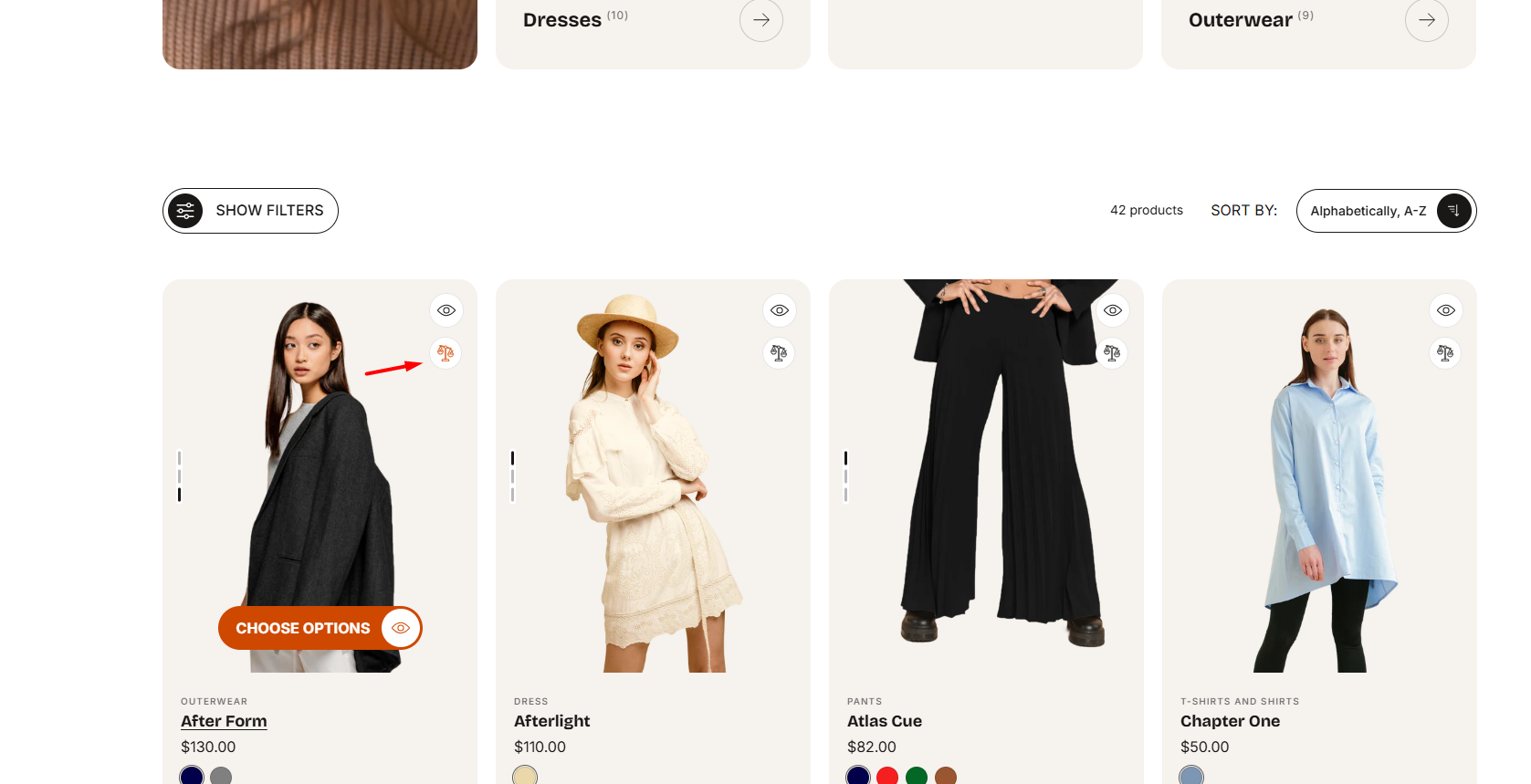
| Enable product comparison | Enabling this feature adds a compare icon to product cards, allowing customers to add products to a comparison drawer with a single click. |
| Enable test mode |
When enabled, test mode keeps the compare drawer and popup always visible while you're adjusting settings in the theme customizer, allowing you to preview changes in real time.
|
Note: Edit text using the **Edit default theme content** option in your theme's menu. Learn more
To update comparison details like size or material, go to the Customize editor, open the product page, and edit the blocks in the “Compare” section
Drawer
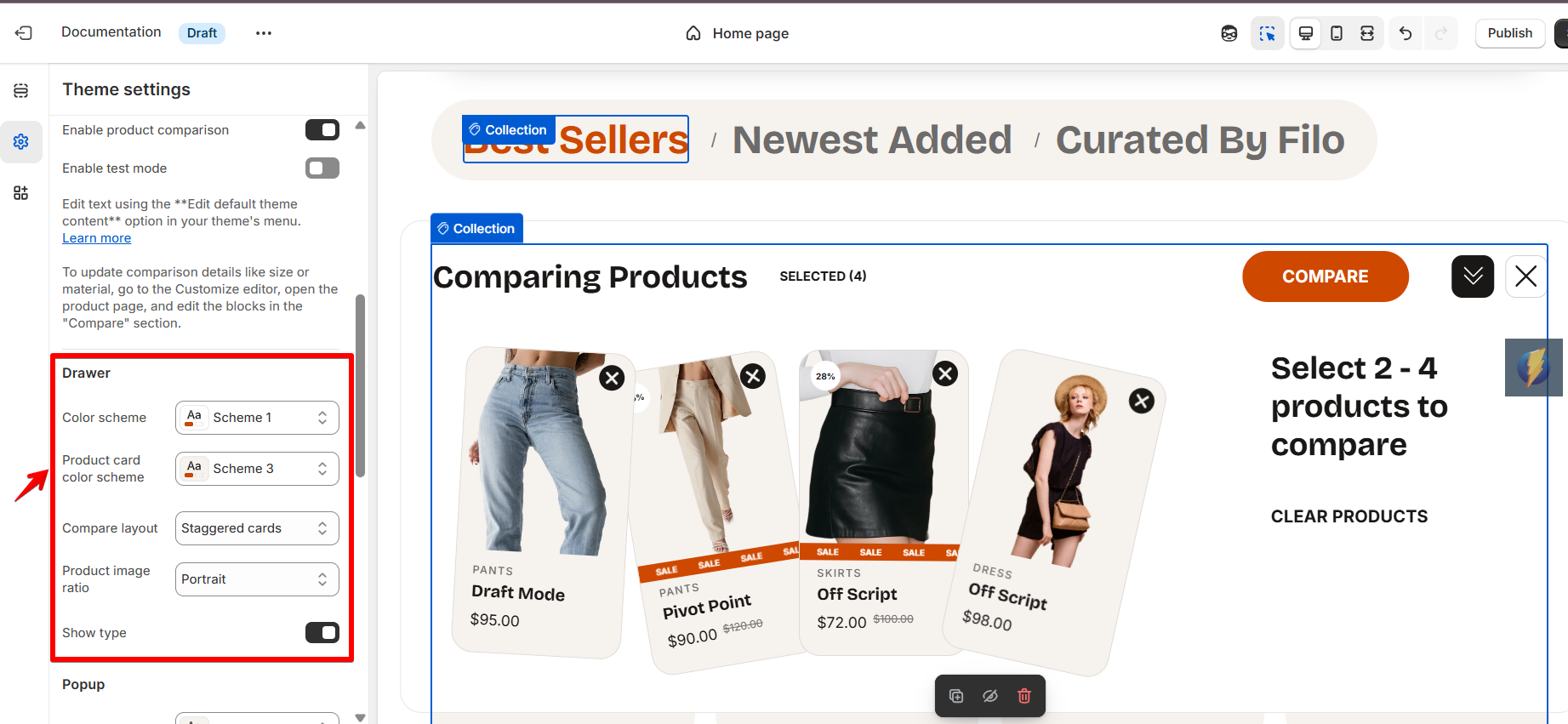
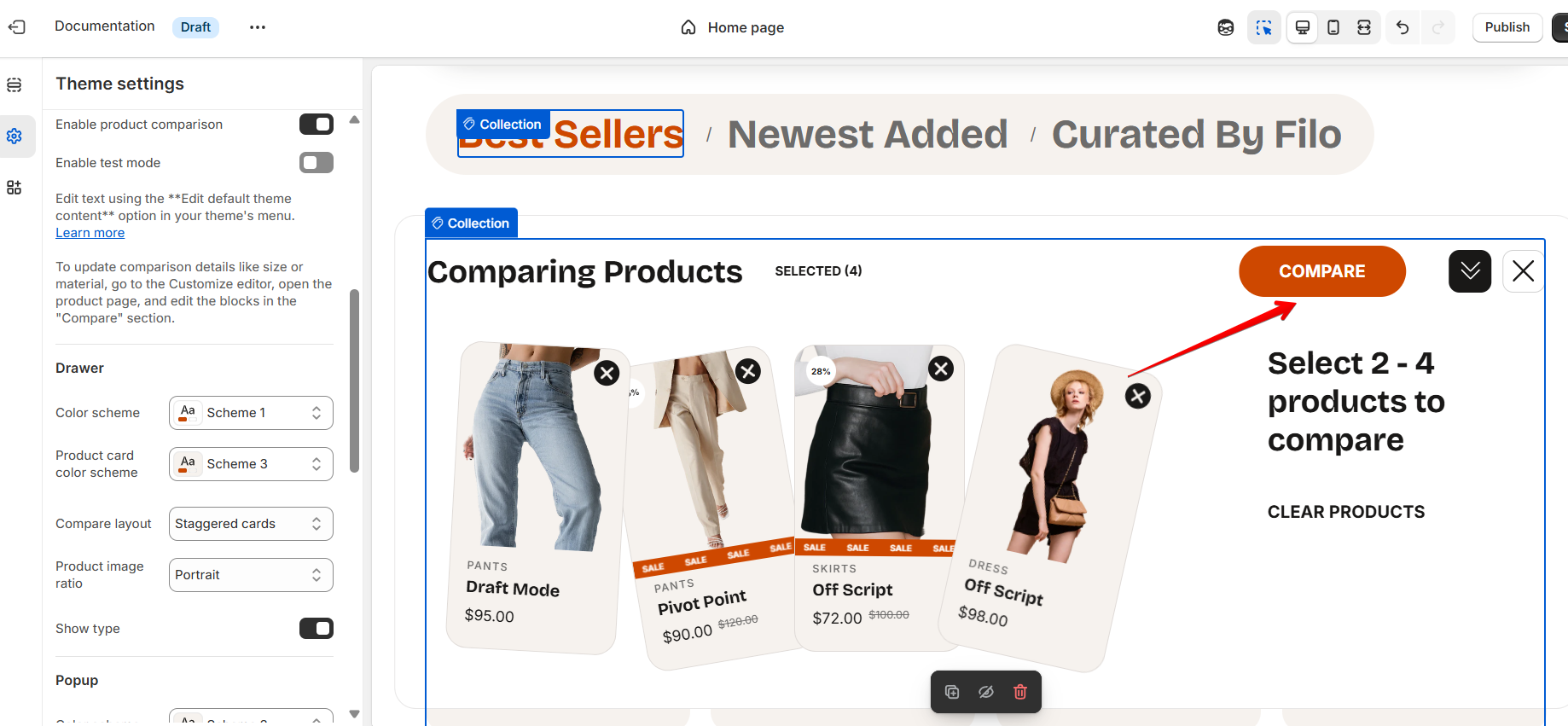
Two ways to see Comparison Drawer:
Enable test mode in Product Comparison settings, or click Compare Icon on product cards.
| Setting | Description |
| Color scheme |
Select the overall color scheme for the drawer interface. Note: You can create color schemes in Theme Settings > Colors tab, then apply one to each section, block, or template. |
| Product card color scheme | Choose a color scheme specifically for product cards displayed within the compare drawer. |
| Compare layout |
Choose how product cards are displayed in the compare drawer:
|
| Product image ratio |
The image ratio determines the shape and proportions of product images. Selecting the right ratio helps maintain a consistent layout and visual balance across product cards. Available options:
|
| Show type |
This setting allows you to show or hide type on product cards in compare drawer. Note: The product vendor must first be added on the product page in the admin. |
Popup
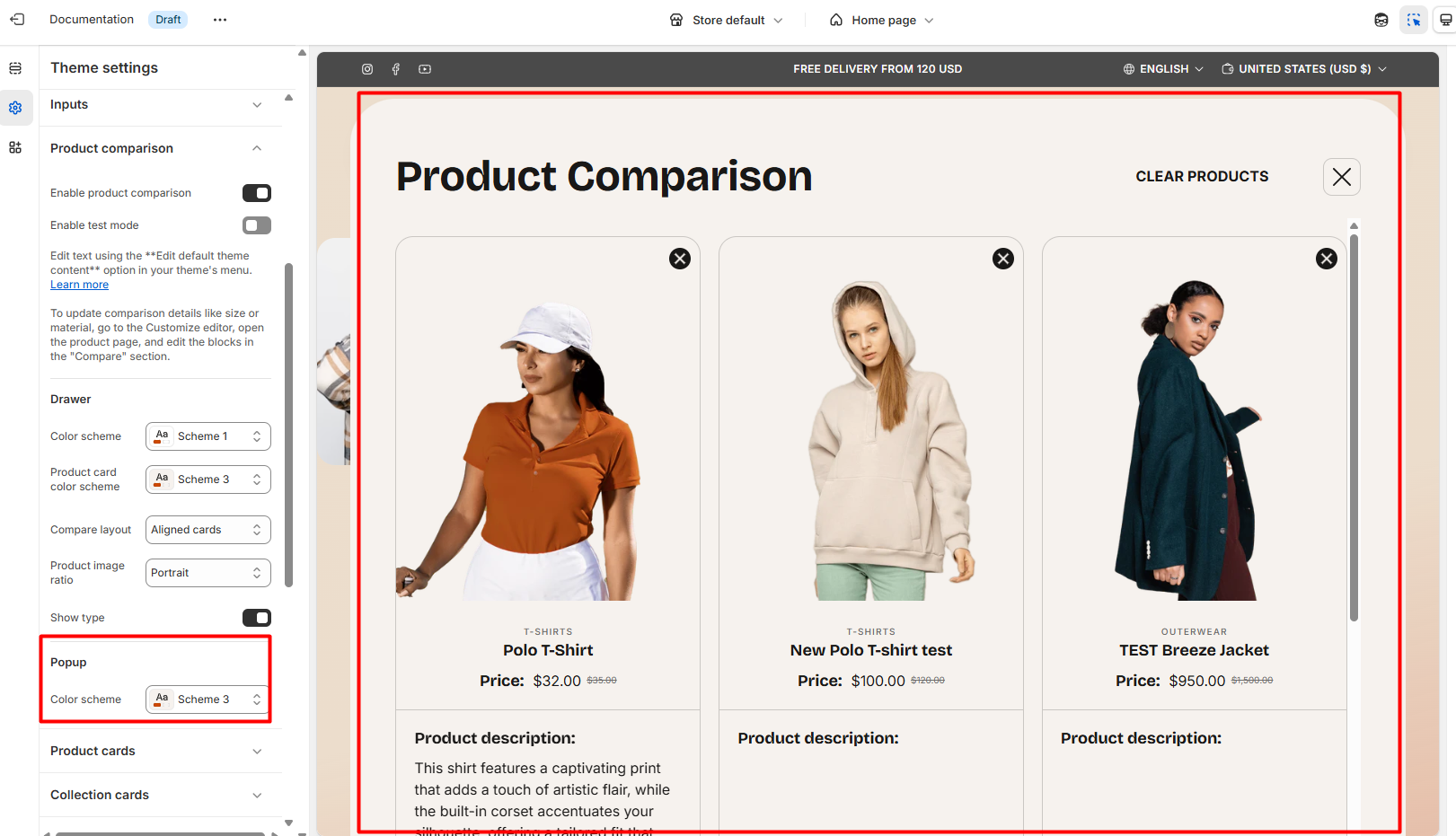
Two ways to see Comparison Popup:
Enable test mode in Product Comparison settings, or click Compare button in Comparison Drawer.
| Setting | Description |
| Color scheme |
Select the overall color scheme for the comparison popup interface. Note: You can create color schemes in Theme Settings > Colors tab, then apply one to each section, block, or template. |