
Expanded collections
To set it up:
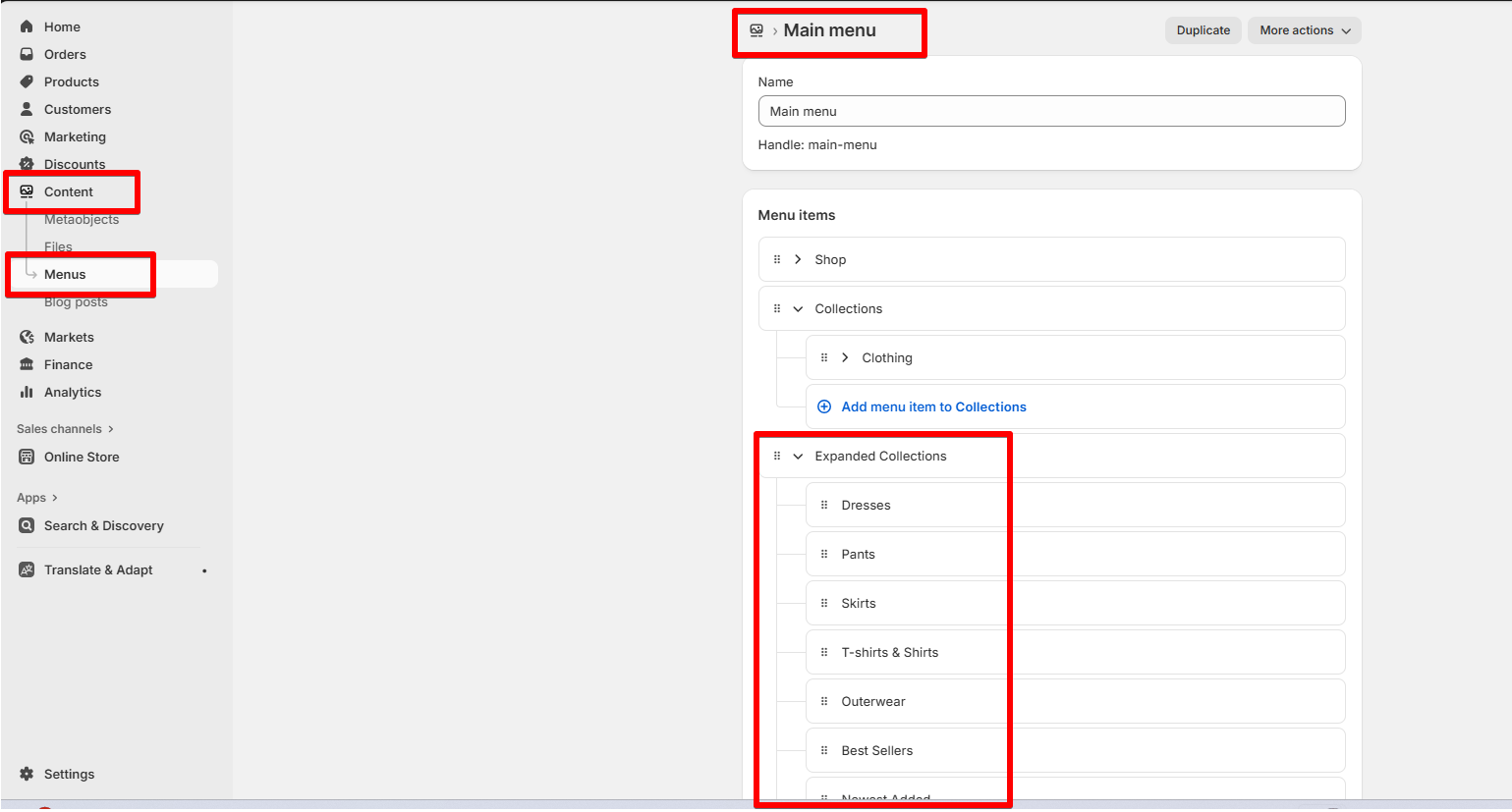
- Navigate to Online Store > Navigation in your Shopify admin.
- Open the Main menu.
- Create a main menu item – this will serve as the title for the mega menu in the header.
- Under this item, add the collections you want to display in the Expanded collections block.
- Save the menu.
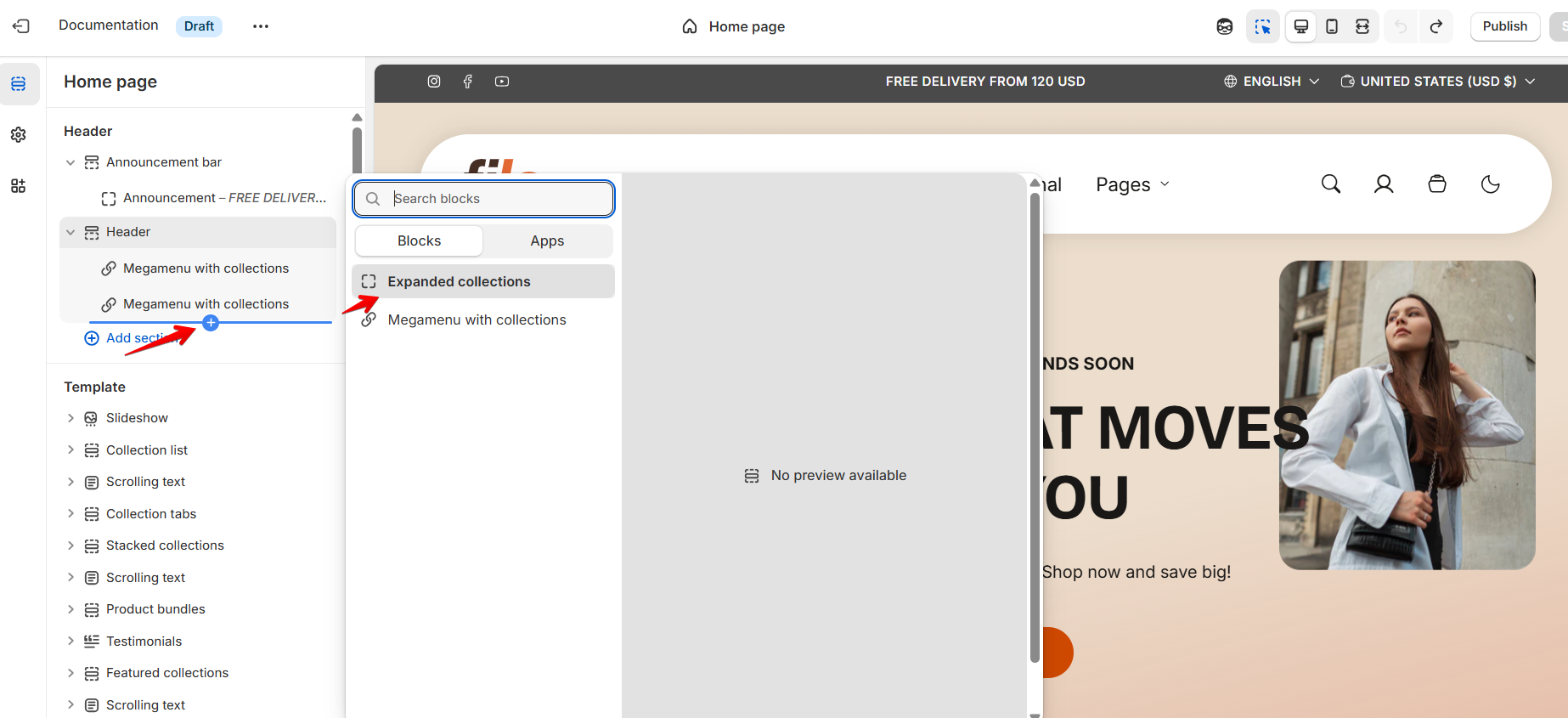
In the header section, add an Expanded collections block.
In the block settings:
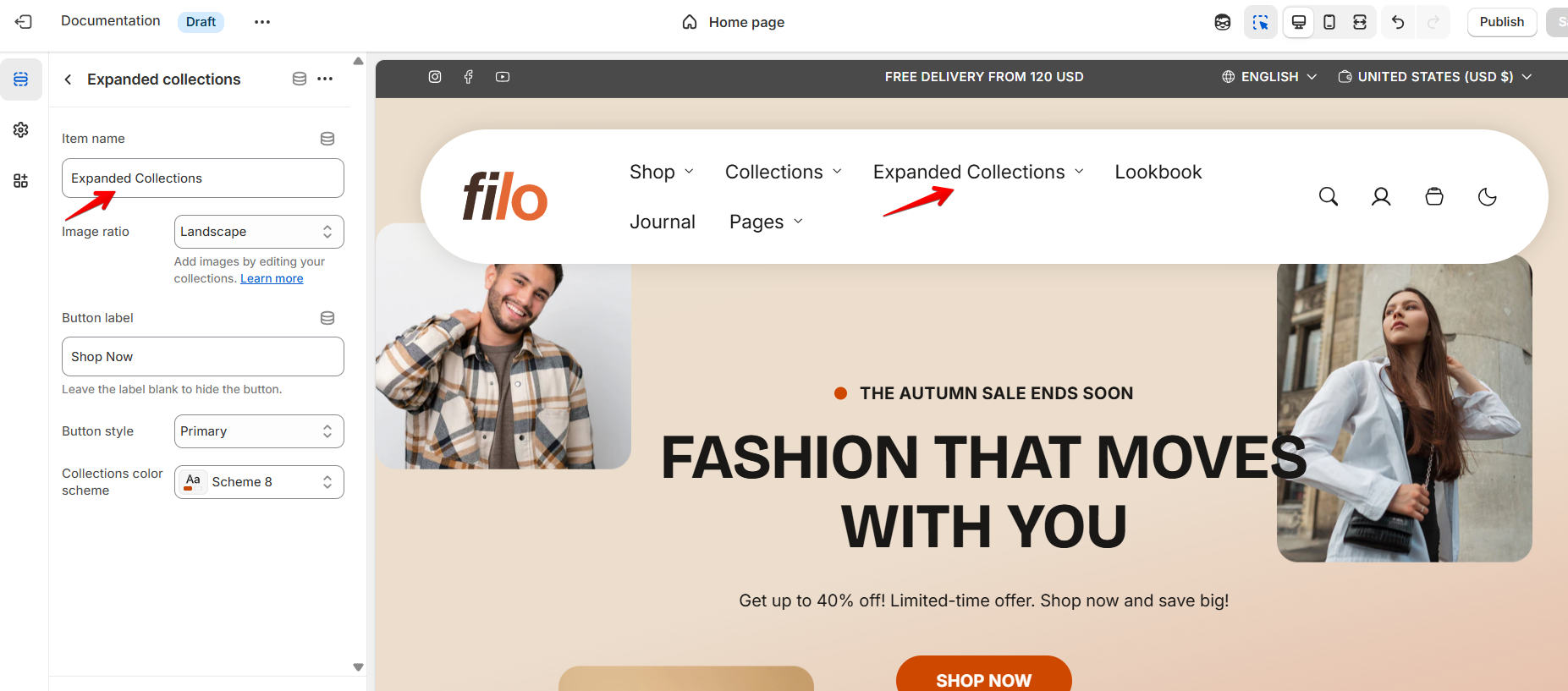
- Menu item name – type the name of the main menu item from your Main menu. The block will open under this item in the header.
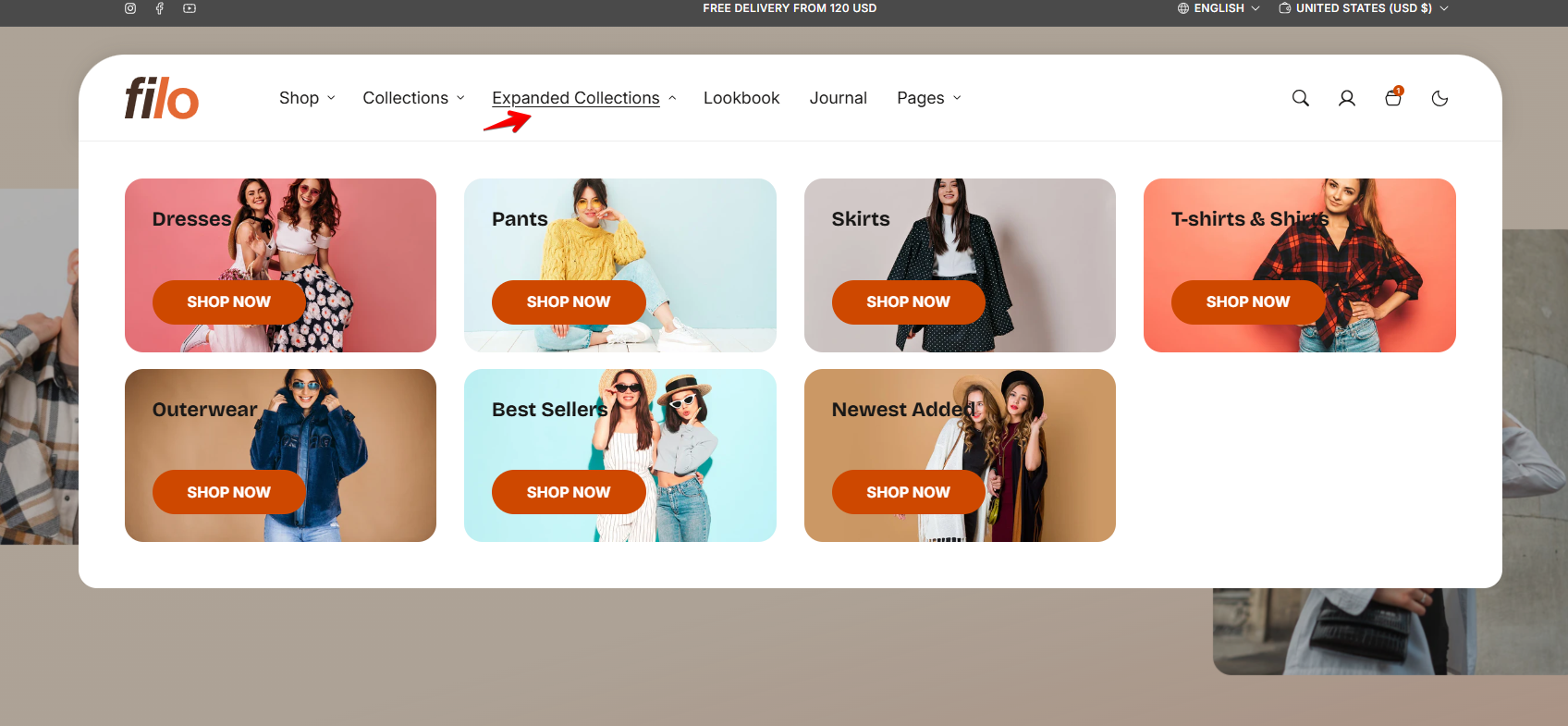
This way, when a customer clicks the chosen menu item, the Expanded collections block will display as a mega menu with the assigned collections.
| Setting | Description |
| Item name | Specify the name of the navigation menu you want to connect to the collection's menu view. Refer to the screenshot below for guidance. |
| Image ratio |
|
| Button label |
Decide whether the menu includes a button:
|
| Button style |
Choose the button’s appearance:
|
| Collections color scheme |
Choose color scheme for collections. A color scheme consists of a predefined set of colors you can apply to this section for consistent styling. These schemes are created in the Theme Settings and are available across all sections, making customization faster and ensuring a cohesive color system throughout your store. Learn more about color schemes. |