
Testimonials banner settings
This guide describes the Testimonials banner section.
The Testimonials section displayed on the homepage, featuring rotating customer feedback about products and showcasing the associated product card.

How to access the Testimonials banner section
Note: Section cannot be added to the Password page.
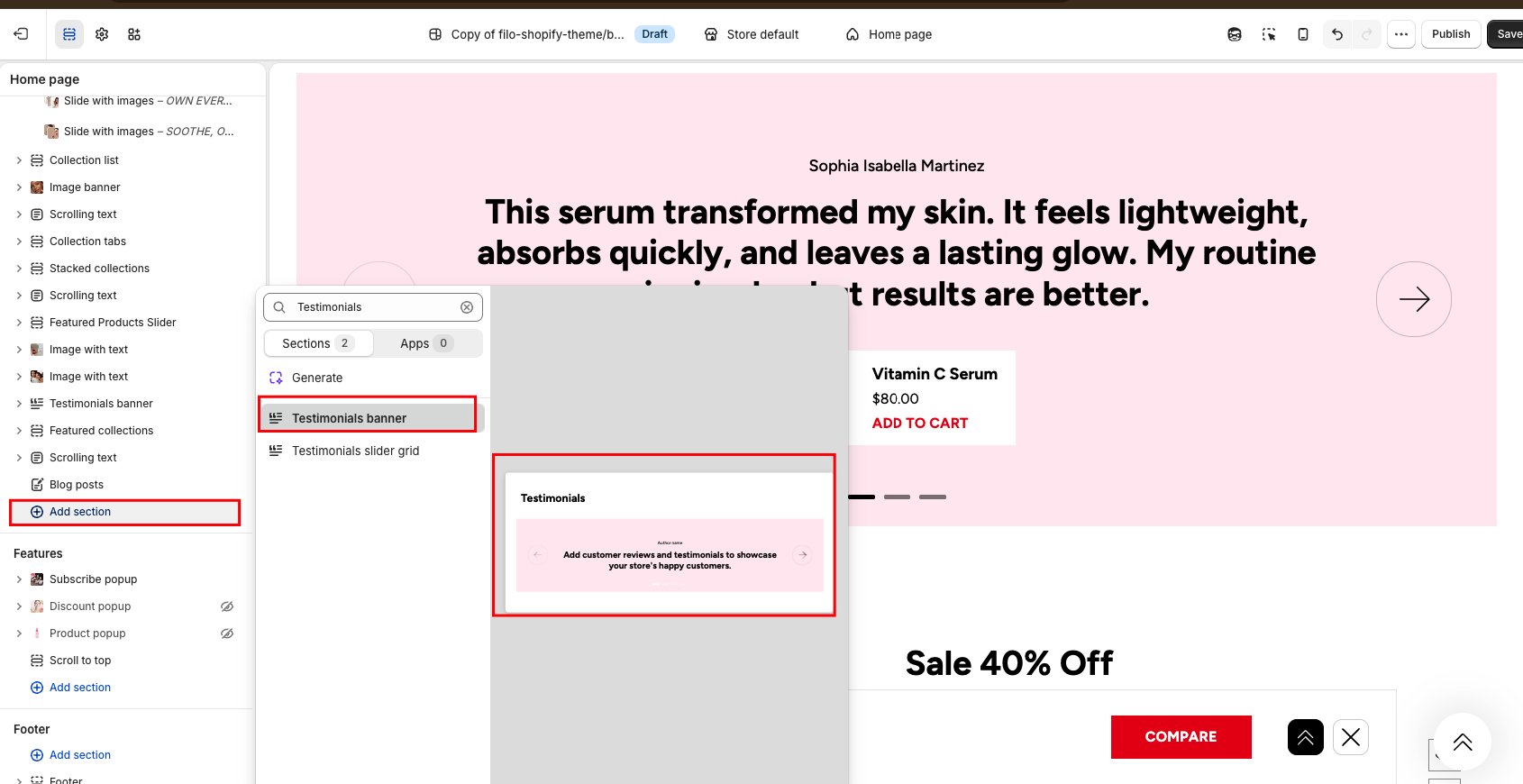
From any page, click on “Add Section” and choose “Testimonials banner” from the list.
To insert a new section between existing ones, follow the steps in the article "Sections and blocks" and locate the section titled “How to add a section”.
How to configure the Testimonials banner section
Basic Components
The “Testimonials banner” section consists of two primary components:
- General settings – These control the overall settings of the section.
- Block – Each block has its own individual settings.
Available block types include:
- Slide. To learn about all available block settings, see the related article "Slide"
To insert a new block between existing ones or to add a block when none have been added yet, refer to the article "Sections and blocks" and locate the section titled “How to add a block”.
General settings
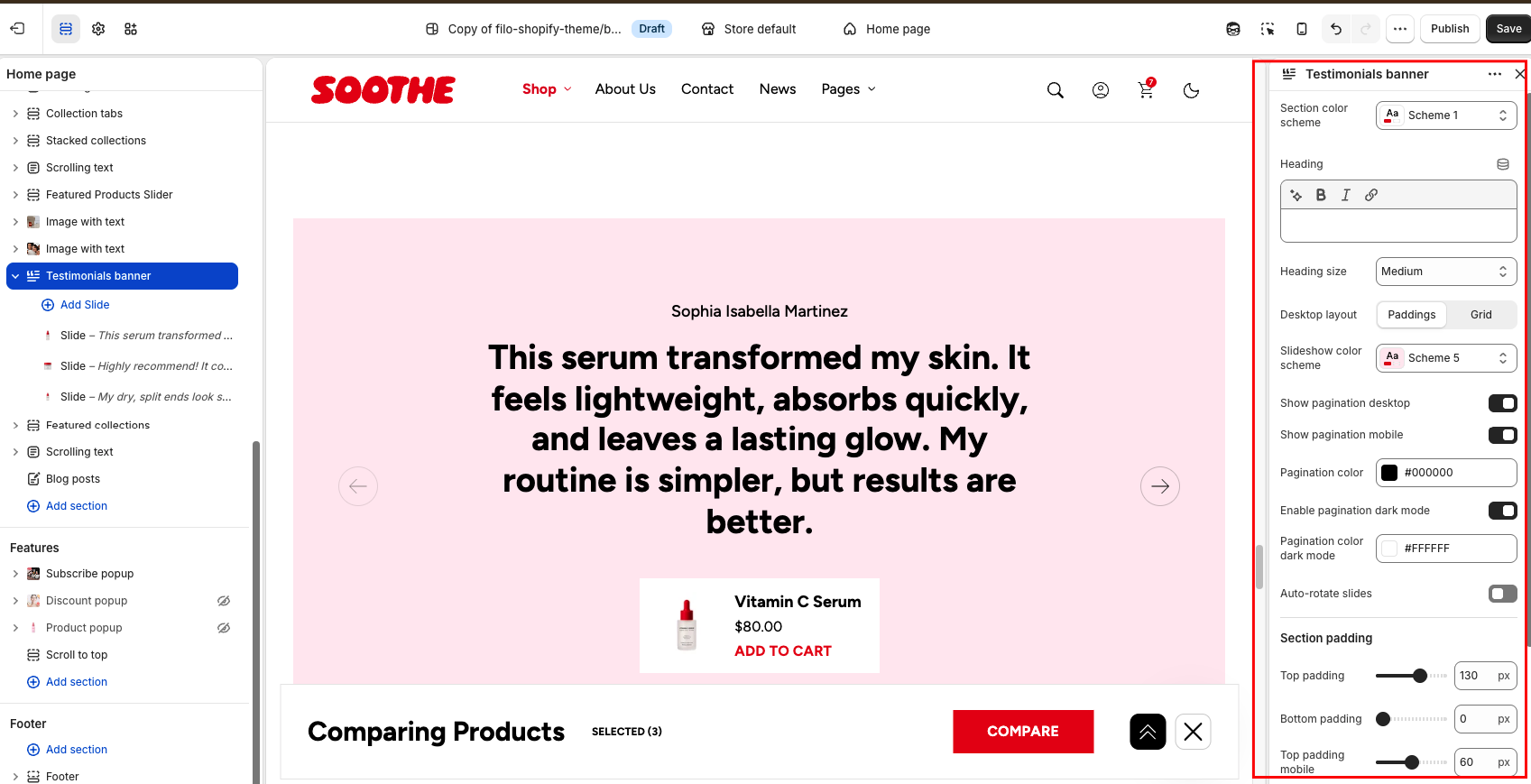
Select a setting described in the following table:
Testimonials banner (testimonials.liquid)
| Setting | Description |
|---|---|
| Section color scheme |
Apply Color Scheme for section: • After creating your color schemes in theme settings — 'Colors' tab, you can apply them to different sections of your store. • In each section or block, you'll see a Color scheme dropdown. • Select the appropriate color scheme for each section, ensuring consistency with your brand's identity. |
| Heading | The section's heading text. Supports basic inline formatting. Default: "Testimonials". |
| Heading size | Controls how large the heading renders: Small, Medium, Large. |
| Desktop layout |
• Paddings: The slide has padding but extends wider than the other sections, which stay inside the container. (Default) • Grid: The image banner is constrained to the same width as other sections and aligns with the main content container. |
| Slideshow color scheme | Apply a color scheme specifically for the slides. |
| Show pagination desktop | Enable to display pagination at the bottom of the slide on desktop. |
| Show pagination mobile | Enable to display pagination dots or indicators at the bottom of the slideshow on mobile. |
| Pagination color | Select the color of the pagination dots or indicators. Only shown when either Show pagination desktop or Show pagination mobile is on. Default: white (#FFFFFF). |
| Enable pagination dark mode | Lets you set a separate pagination color for when the storefront is in dark mode. Only appears when the theme's dark/light mode feature is enabled and pagination is shown. Disabled by default. |
| Pagination color dark mode | The pagination indicator color used when the storefront is in dark mode. Only shown when dark/light mode is enabled, Enable pagination dark mode is on, and pagination is shown. Default: black (#000000). |
| Auto-rotate slides | Enable automatic slide rotation. |
| Change slides every | Set the interval (in seconds) between each slide when auto-rotate is enabled. Only shown when Auto-rotate slides is on. |
Section padding
| Setting | Description |
| Top padding | The 'Top padding' setting allows you to adjust the amount of space at the top of the section using a slider. |
| Bottom padding | The 'Bottom padding' setting functions similarly to the “Section top padding” setting, but controls the space at the bottom of the section. |
| Top padding mobile | The 'Top padding mobile' setting allows you to adjust the amount of space at the top of the section specifically for mobile devices, using a slider. |
| Bottom padding mobile | The 'Bottom padding mobile' setting works similarly to the 'Top padding mobile' setting but controls the space at the bottom of the section for mobile devices. |