
Blog posts slider settings
This guide describes the Blog posts slider section.
This section lets you customize how your blog posts appear in the slider. You can add a main heading for the section and adjust its settings, including enabling autorotation, setting the interval in seconds, adjusting scroll speed and image height. Select a blog and the number of posts to display, as well as configuring both the main color scheme and the slide color scheme.
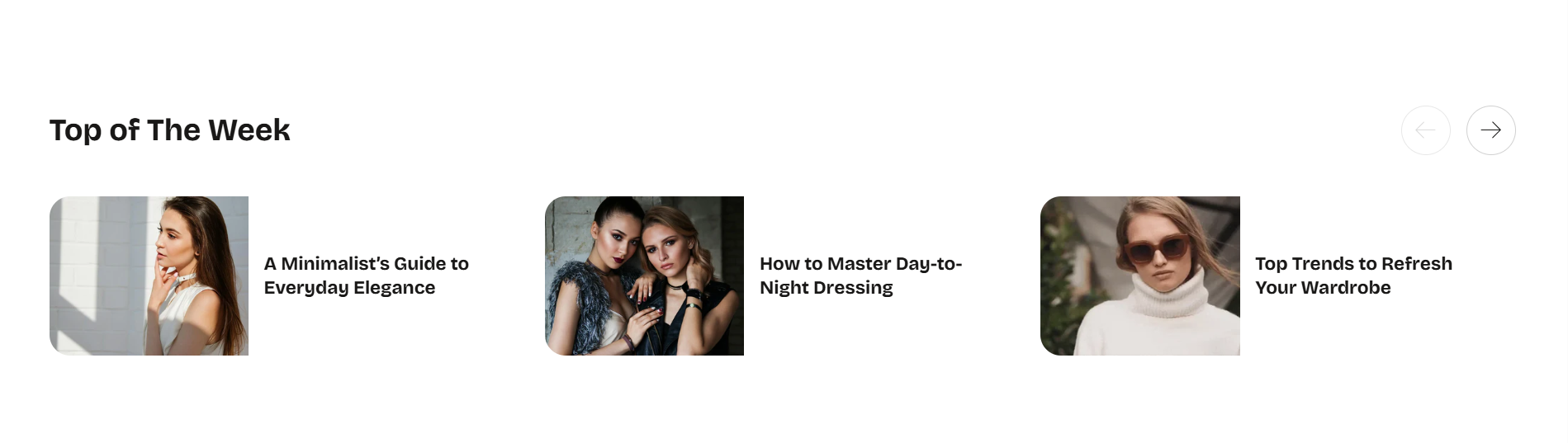
Demo Example:
This section is displayed on the blog archive page to demonstrate how the blog posts slider is presented.
How to access the Blog posts slider section
Access this section through the theme customizer:
- Navigate to Online Store > Themes
- Select “Customize” on your active theme
- On any theme template, click “Add section”
- Search and select “Blog posts slider”
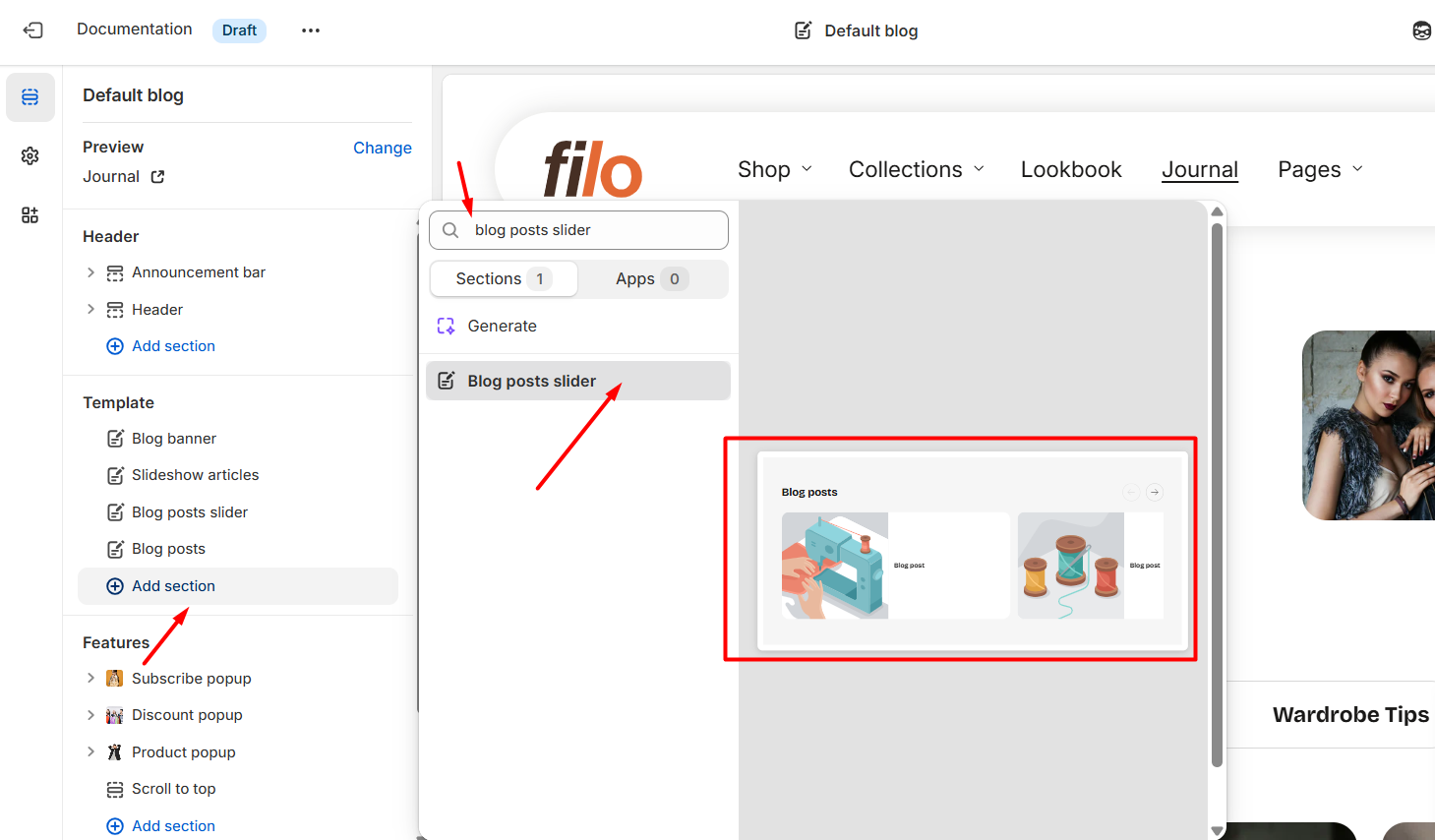
Note: Section cannot be added to the Password page.
To insert a new section between existing ones, follow the steps in the article "Sections and blocks" and locate the section titled “How to add a section”.
Once the blog posts section is added, you can customize its appearance and functionality using the available settings.
How to configure the Blog posts slider section
Basic Components
The “Blog posts slider” section consists of general settings.
To start customizing your blog posts, click on the “Blog posts slider” section to access its settings.
General settings
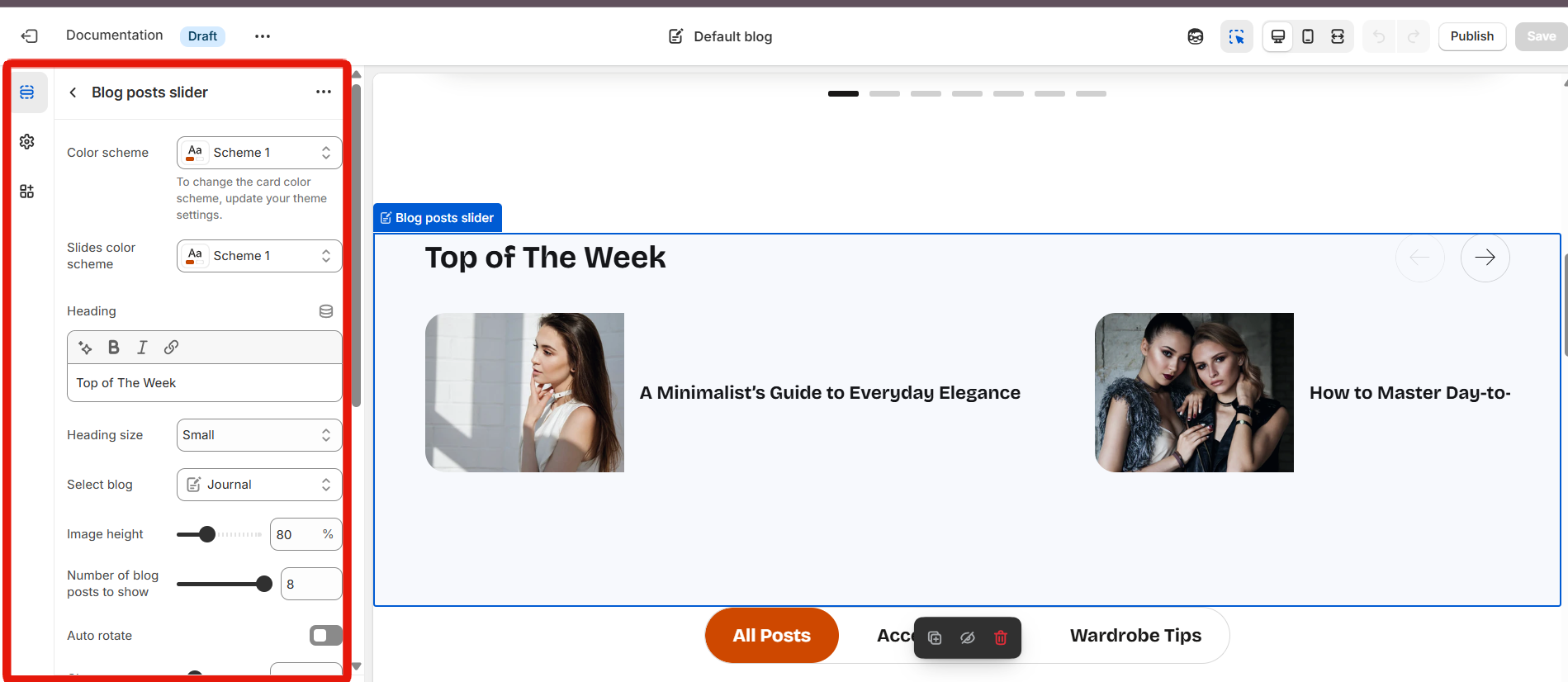
Select a setting described in the following table:
|
Setting
|
Description
|
|
Color scheme
|
Choose a color scheme for the entire section.
A color scheme consists of a predefined set of colors you can apply to this section for consistent styling. These schemes are created in the Theme Settings and are available across all sections, making customization faster and ensuring a cohesive color system throughout your store. Learn more about color schemes. |
| Slides color scheme | A separate color scheme can be added for the blog post cards in the slider, allowing distinct background and text color. |
|
Heading
|
To add a heading to the section, simply enter the text in the provided field. In the top menu of the field, you can find options to customize the heading such as making it bold, italic, or adding a hyperlink.
Furthermore, you can click the dynamic source button to insert a dynamic source as the title of the section.
|
|
Heading size
|
The heading size setting offers four options to control the size of the section heading:
|
|
Select blog
|
Select blog with blog posts to be displayed in the blog posts slider section, or create a new blog.
|
| Image height | You can adjust a height of a blog post image using the slider. |
| Blog posts title size |
Sets the font size of article titles displayed on each slide. Options: • Small (Default) • Medium • Large |
|
Number of blog posts to show
|
Choose the desired number of blog posts that you want to display in the slider. This option allows you to control the quantity of blog posts visible to your visitors.
|
| Auto-rotate | Enable this option to activate automatic rotation of blog posts slides in the slider. |
| Change every | Set the interval (in seconds) between each slide when auto-rotate is enabled. |
| Scroll speed | Adjust the speed at which slides scroll in the slider. |
Section padding
|
Setting
|
Description
|
|
Top padding
|
The 'Top padding' setting allows you to adjust the amount of space at the top of the section using a slider.
|
|
Bottom padding
|
The 'Bottom padding' setting functions similarly to the “Section top padding” setting, but controls the space at the bottom of the section.
|
|
Top padding mobile
|
The 'Top padding (Mobile)' setting allows you to adjust the amount of space at the top of the section specifically for mobile devices, using a slider.
|
|
Bottom padding mobile
|
The 'Bottom padding mobile' setting works similarly to the 'Top padding mobile' setting but controls the space at the bottom of the section for mobile devices.
|