
Announcement bar settings
This guide describes the Announcement bar section.
Use the section to display messages about sales, special discounts, and new products at the top of your store's pages.
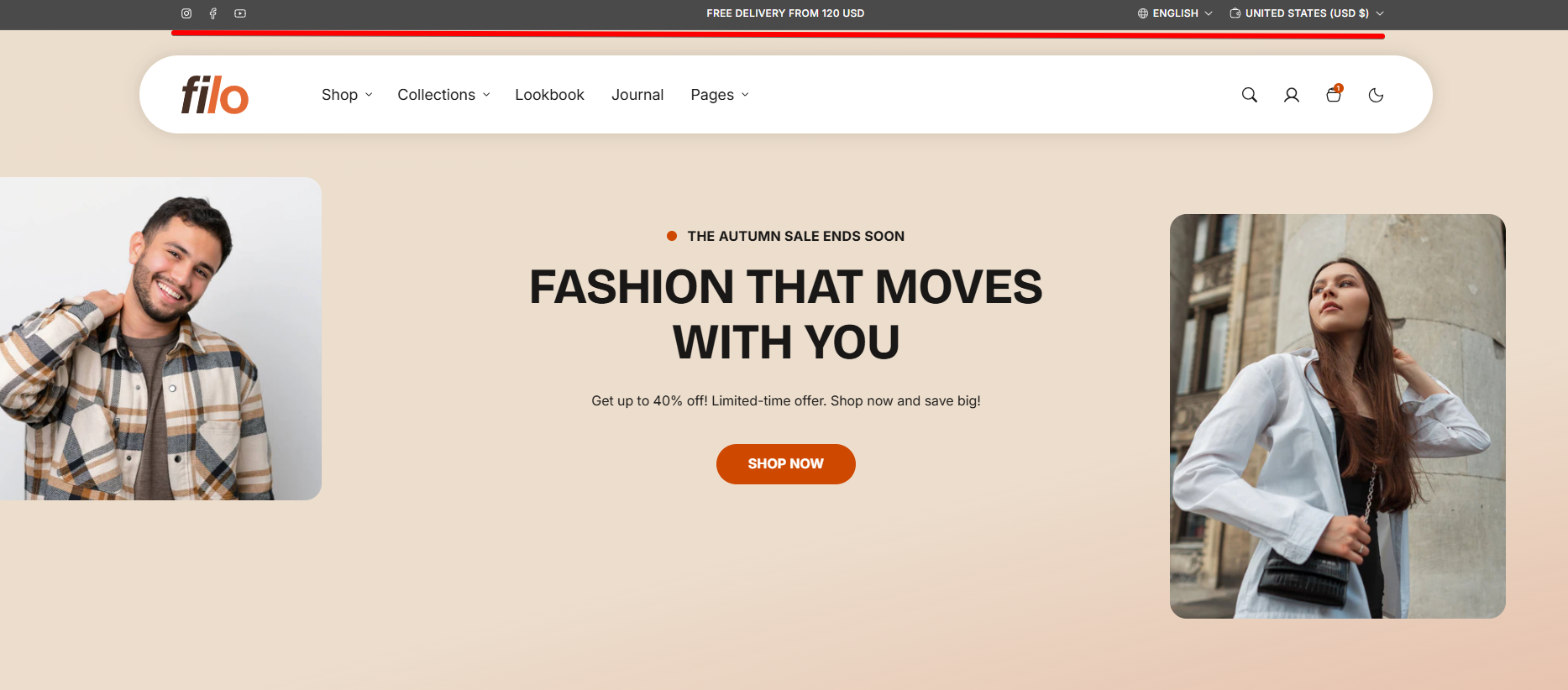
How to access the Announcement bar section
Access this section through the theme customizer:
- Navigate to Online Store > Themes
- Select “Customize” on your active theme
- In the left sidebar (Header group) you’ll find the announcement bar situated below the Header section.
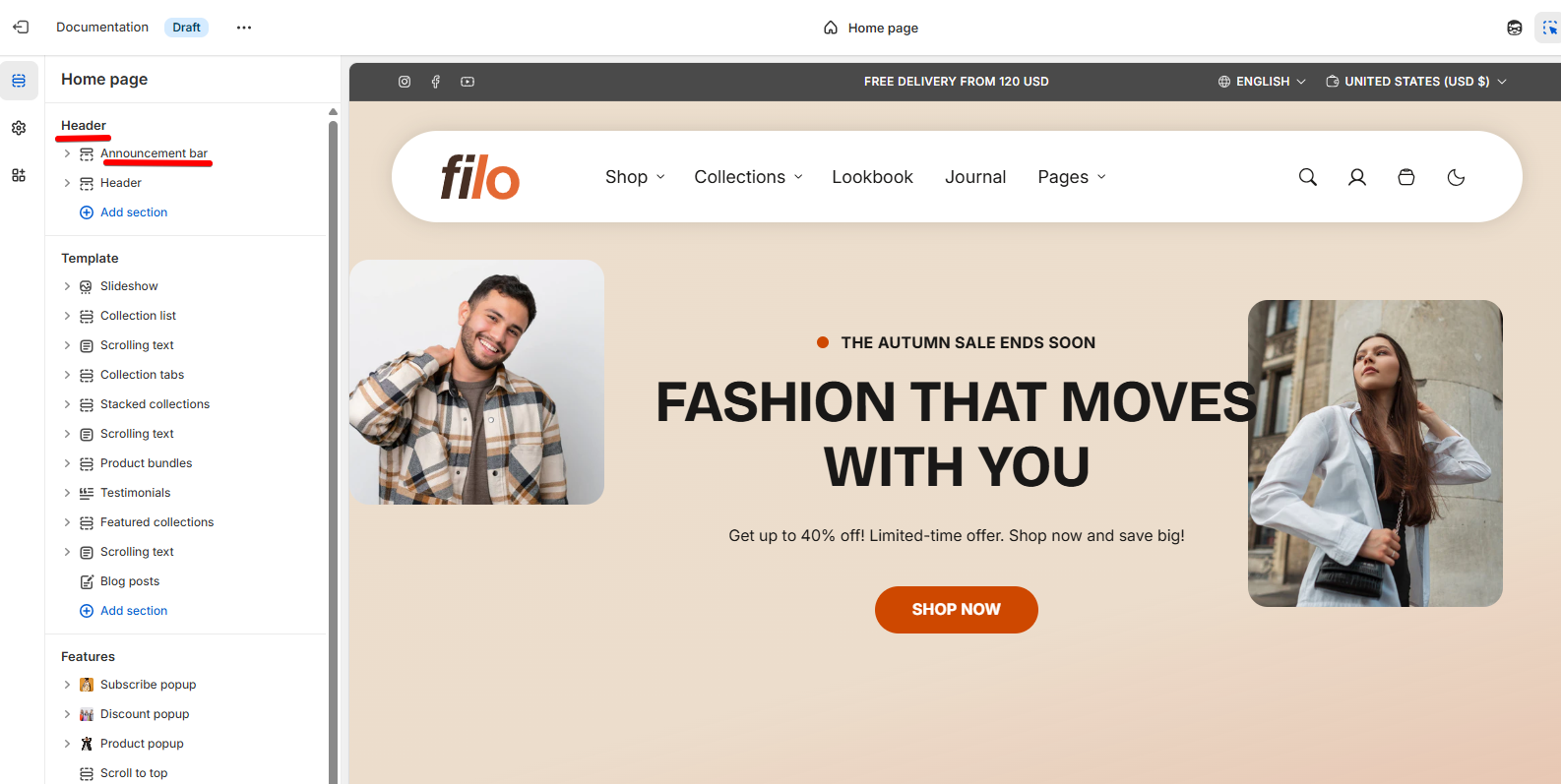
How to configure the Announcement bar section
Basic Components
The “Announcement bar” section consists of two primary components:
- General settings
- Block. Available block types include:
- Announcement. To learn about all available settings, see the related article "Announcement"
General settings
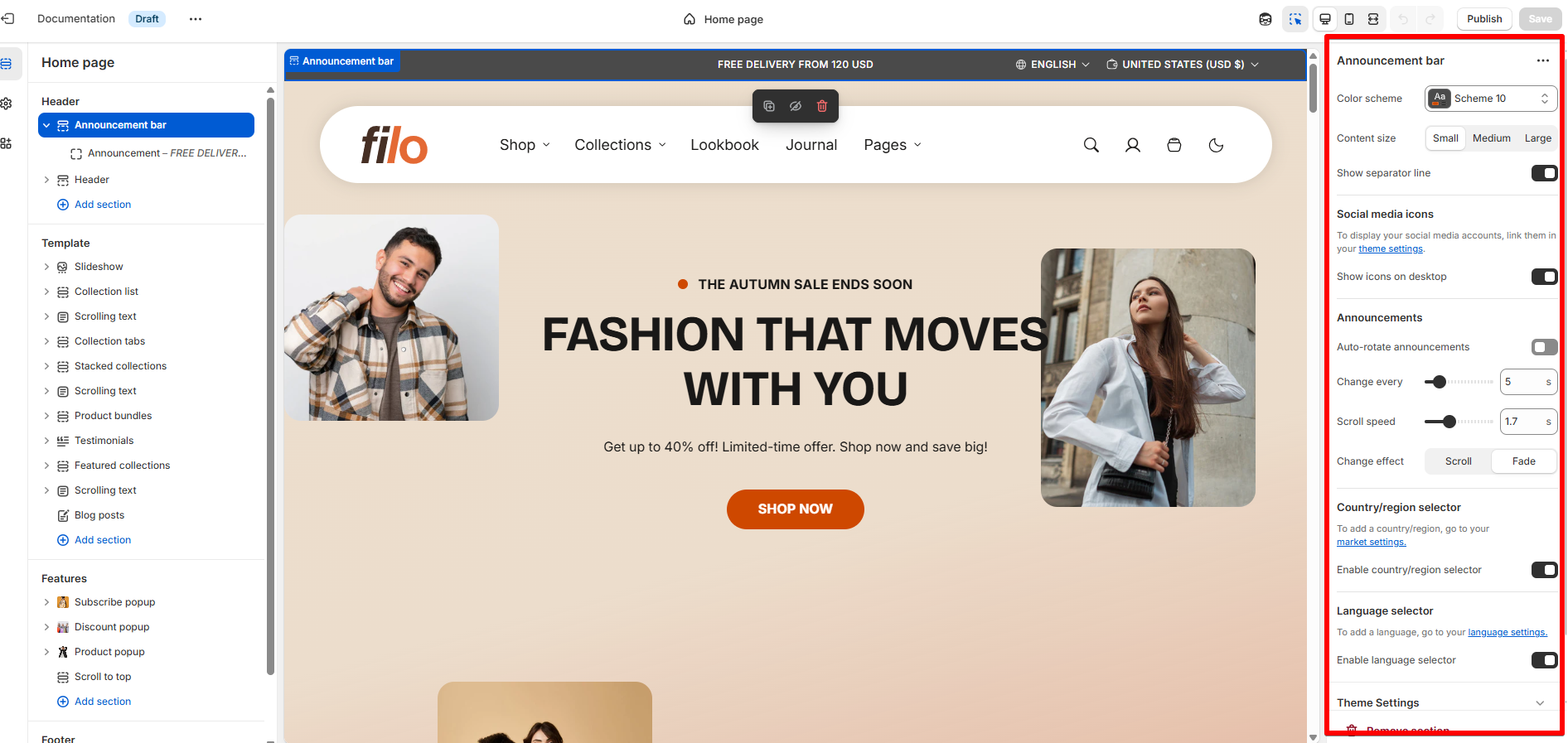
Select a setting described in the following table.
| Setting | Description |
| Color scheme |
The Color Scheme feature enables you to personalize every aspect of your theme's colors. You can create and manage a list of color schemes in the Theme Settings under the Colors tab. These schemes allow you to define background colors, text colors, button and link styles, icons and badges colors, border and input field colors. Once a color scheme is created, you can apply it to specific sections or blocks, such as the announcement bar. When applied, all associated colors in that section will automatically update, ensuring a cohesive and professional look across your website. |
| Content size |
All content will adjust according to the selected size, including the announcement text, country/region and language selectors, and the size of social icons. Options:
|
| Show separator line | Enabling this option, you can add a line to visually separate the announcement bar from the banner or section. This is especially useful when using a light background color to ensure clarity and distinction between these sections. |
Social media icons
| Setting | Description |
| Show icons on desktop | Enable social media icons on desktop view. |
Announcements
| Setting | Description |
| Auto-rotate announcements |
|
| Change every (choose seconds) | Select how often announcements rotate, in seconds. |
| Scroll speed | Adjust the speed of the scrolling effect. |
| Change effect |
Choose how announcements transition between each other:
|
Country/region selector
| Setting | Description |
|---|---|
| Enable country/region selector (To add a country/region, go to your market settings) |
If you add a country selector to your theme, then your customers can choose their country or region from a dropdown list of countries and regions that you've added in your Shopify Payments settings. The local currency is also displayed in the dropdown list beside each country or region. *If your store is on the Shopify Plus plan, then your store automatically sets your customers' country or region and currency based on their IP address. |
| Show country | Displays the customer's current country name (or its ISO code, on smaller screens) next to the picker icon. Only shown when Enable country/region selector is on. Enabled by default. |
| Show currency ISO code | Displays the currency code (e.g. "USD") in the picker, in parentheses alongside the country name. Only shown when Enable country/region selector is on. Enabled by default. |
| Show currency symbol | Displays the currency symbol (e.g. "$") in the picker, alongside the country name. If both this and Show currency ISO code are on, both appear together (e.g. "USD $"). Only shown when Enable country/region selector is on. Enabled by default. |
Language selector
| Setting | Description |
| Enable language selector (To add a language, go to your language settings) |
Providing content in your customers' native language can improve sales by making it easier for them to understand your marketing, product details, shipping, and return policies. This is particularly important for international customers. To enable multiple languages on your Shopify store, you can create separate URLs for each translated version of your content. When a customer lands on a translated URL, your store will automatically display the corresponding translated version, if available. *Make sure that you have a multi-setup of languages in your store settings. |