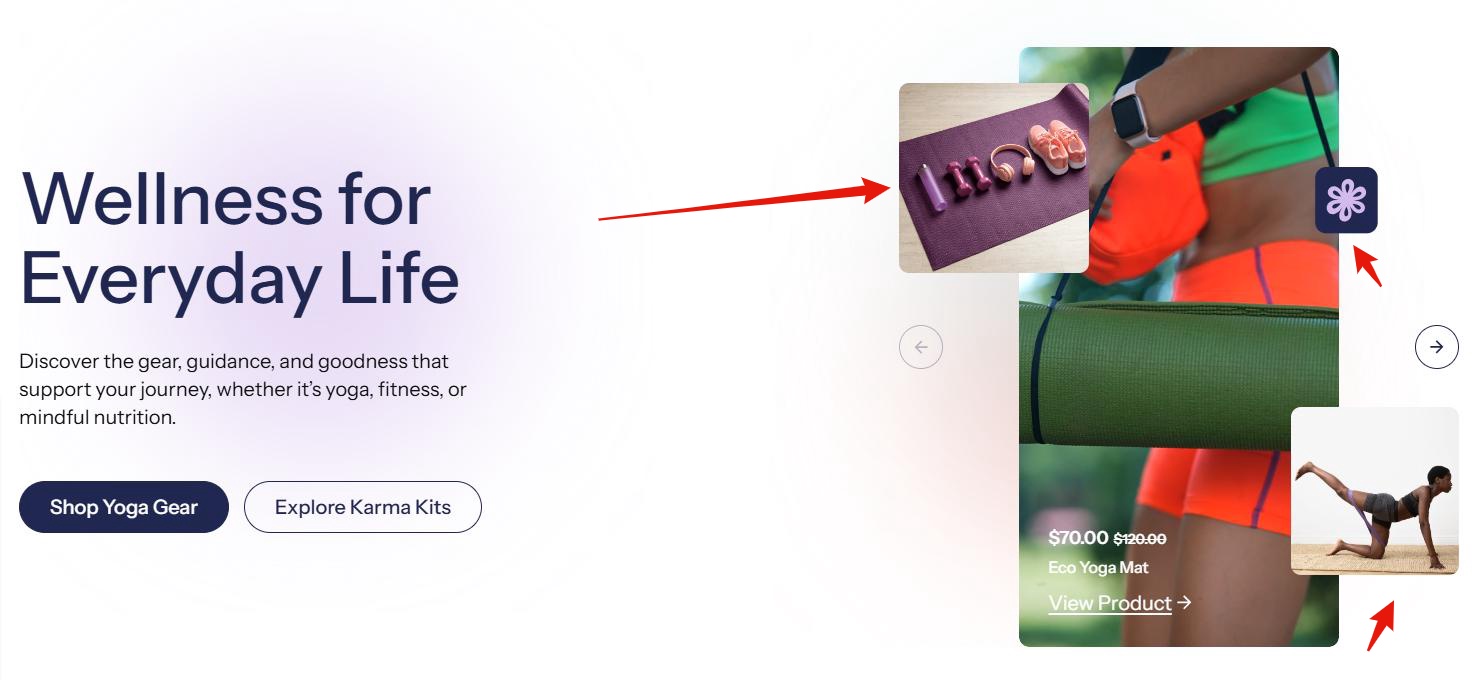
Slide block
| Setting | Description |
| Product info color scheme | Select the color scheme (text color, link color, and hover color) for your product information block. This helps align the visuals with your brand or banner theme. |
| Media type |
Choose what type of media you want to display for the product.
|
| Main image | When you choose the image media type, this option will appear. Add a main image for the product slide. |
| Main video |
When you choose the video media type, this option will appear. Add a main video for the product slide. |
| Current price | Enter the product’s current selling price. This will be displayed as the main price visible to customers. |
| Original price (crossed out) | Enter the previous or original price. It will be shown with a strike-through to highlight a discount or promotion. |
| Product title | Enter the product name or title. |
| Link label | Provide the text for the clickable button or link (e.g., “Buy Now,” “Learn More,” “Shop Now”). |
| Link | Enter the URL the link should lead to. This is where customers will be directed when they click the button or label. |
| Button style |
Choose the second button’s appearance:
|
Overlay images
| Setting | Description |
| Overlay image 1 | This is an image that will be positioned next to the main product image or video. It can extend beyond the edges of the main image but will partially overlap it. You can adjust its position vertically (top to bottom) and horizontally (left to right). |
| Overlay 1 left position |
|
| Overlay 1 top position |
|
| Overlay 1 width |
|
| Overlay 1 left position (mobile) |
|
| Overlay 1 top position (mobile) |
|
| Overlay image 2 | This is an image that will be positioned next to the main product image or video. It can extend beyond the edges of the main image but will partially overlap it. You can adjust its position vertically (top to bottom) and horizontally (left to right). |
| Overlay 2 left position |
|
| Overlay 2 top position |
|
| Overlay 2 width |
|
| Overlay 2 left position (mobile) |
|
| Overlay 2 top position (mobile) |
|
| Decorative icon | You can add another element — a decorative icon — which is much smaller than the overlay images. This allows you to make the section visually more interesting. You can also adjust its placement anywhere within the product block. |
| Icon left position |
|
| Icon top position |
|
| Icon width |
|
| Icon left position (mobile) |
|
| Icon top position (mobile) |
|
Overlay images and decorative icon